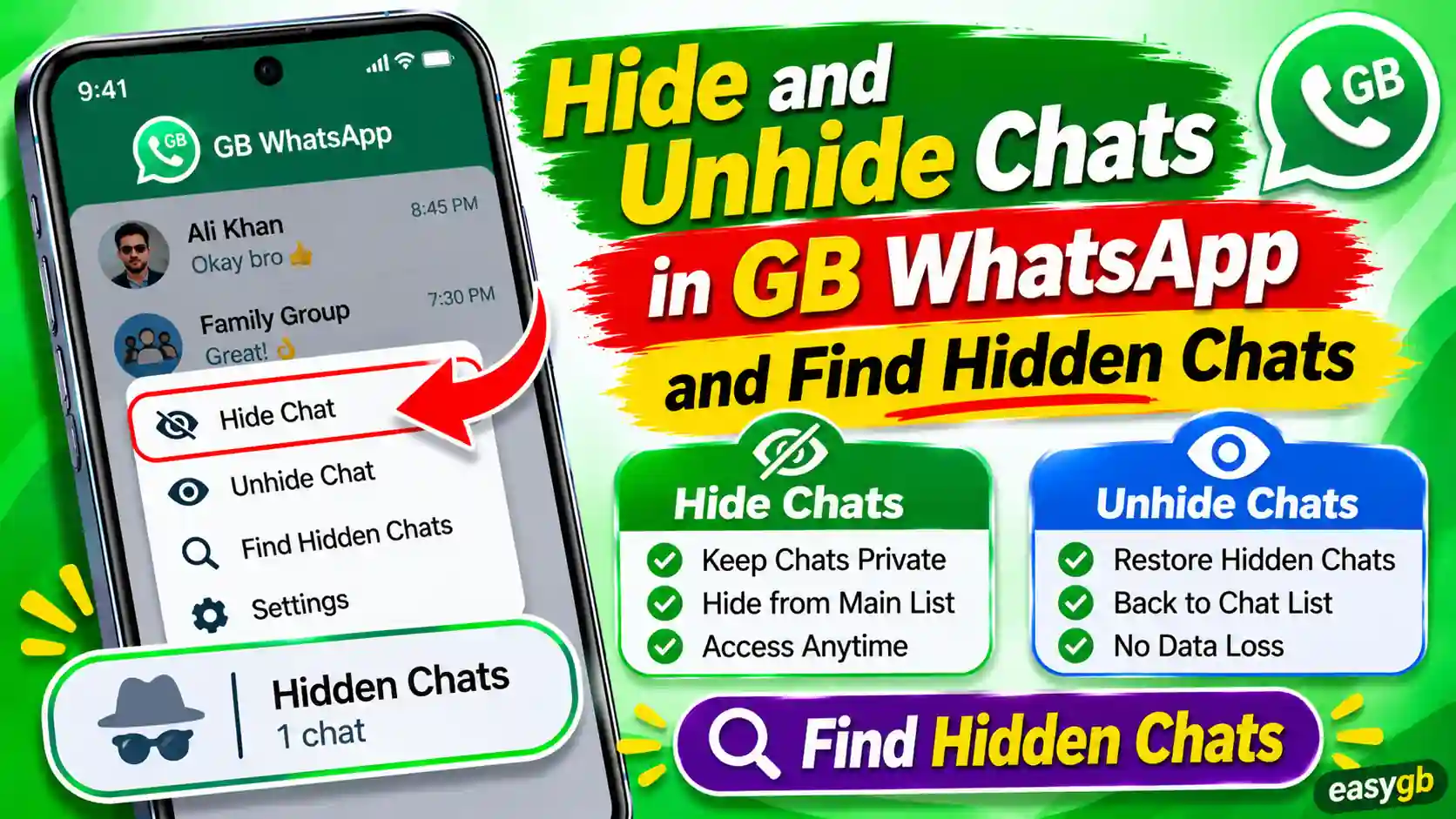
Hide and Unhide Chats in GB WhatsApp, and Find Hidden Chats
Someone picked up your phone. A message just landed in a chat you do not want anyone else to see. Or maybe you simply want to keep certain conversations out of plain sight without deleting a single word. GB WhatsApp gives you three distinct ways to handle this, and each one works differently. The challenge most people run into is that they hide a chat and then cannot find it again. This guide walks you through every hiding method, shows you exactly where hidden chats live, and explains how to unhide them in seconds. No guesswork and no lost messages.
GB WhatsApp Gives You 3 Ways to Hide Chats
Not all hiding methods are equal. Before you pick one, it helps to understand what each method actually does and when to use it. Here is a plain-language overview of all three options available in GB WhatsApp.
Moves the chat to an Archived folder. No password required. Good for decluttering. Anyone who knows where to look can open it.
Also in Official WhatsAppHides the chat behind a pattern or PIN. The GB-exclusive method. Access requires drawing the correct pattern on a lock screen.
GB WhatsApp ExclusiveLocks chats using your device fingerprint, PIN, or face recognition. The most secure modern option. Supports a Secret Code to hide the folder itself.
Also in Official WhatsAppAlways run the latest version of GB WhatsApp to get access to all three methods and their most stable implementations. Download the current verified GB WhatsApp APK from EasyGB before following any steps in this guide if you are on an older build.
Method 1: Archive a Chat (Quick and Simple)
Archiving moves a chat out of your main chat list and into a separate Archived folder. It is the fastest way to tidy up your screen without deleting anything. The key thing to understand is that Archive is an organization tool, not a privacy tool. No password protects the archived folder. Anyone who swipes to the bottom of your chat list can open it.
Use Archive when you want to reduce inbox clutter. Use Method 2 or Method 3 when you need actual privacy.
How to Archive a Chat in GB WhatsApp
- Open GB WhatsApp on your Android device.
- Go to the Chats tab on the main screen.
- Long press the chat you want to archive until it is selected.
- Tap the three-dot menu in the top right corner.
- Select Archive from the dropdown options.
- The chat disappears from your main list and moves to the Archived folder.
By default, archived chats return to your main list when a new message arrives. To stop this, go to GB WhatsApp Settings and enable “Keep Chats Archived”. That way, archived chats stay hidden even when new messages come in.
How to Archive a Group Chat
The process is identical for group chats. Long press the group name in your chat list, tap the three-dot menu, and select Archive. The group moves to the Archived folder the same way an individual chat does.
Method 2: Pattern Hide (The GB WhatsApp Exclusive)
This is the feature that most people mean when they talk about hiding chats in GB WhatsApp. It is entirely unique to GB WhatsApp and similar mods. The official WhatsApp app has never offered this. When you use it, the chat disappears from your main screen and moves into a hidden folder protected by a pattern, PIN, or password of your choosing.
What makes this method especially discrete is how you access the hidden folder. There is no visible button labeled “Hidden Chats” on your main screen. Access requires tapping the GB WhatsApp logo or text in the top left corner of the chats screen and entering your pattern. To anyone who does not know this, the hidden chats simply do not exist on the visible interface.
How to Hide an Individual Chat
- Open GB WhatsApp and go to the Chats screen.
- Long press the chat you want to hide to select it.
- Tap the three-dot menu in the top right corner of the screen.
- Select Hide from the dropdown menu.
- GB WhatsApp prompts you to set a pattern lock (if this is your first time hiding a chat). Draw your chosen pattern and confirm it by drawing it again.
- GB WhatsApp also asks you to set two security questions for password recovery. Fill these in carefully and remember your answers.
- Your chat immediately disappears from the main chat list.
GB WhatsApp will ask you to answer security questions when you set up your pattern. These are your only recovery option if you forget the pattern later. Take them seriously. If you skip them or forget the answers, the only way out is a full reset that permanently deletes all hidden chats.
How to Hide a Group Chat
The steps are the same as hiding an individual chat, with one visual difference on some builds. After long pressing the group:
- Long press the group chat in your chat list.
- Look for the eye icon in the toolbar at the top of the screen (it appears next to the three-dot menu on some versions) and tap it.
- Alternatively, tap the three-dot menu and select Hide.
- Enter your existing pattern to confirm, or set one up if this is your first hidden chat.
- The group disappears from your main screen.
Method 3: Chat Lock with Fingerprint, PIN or Secret Code
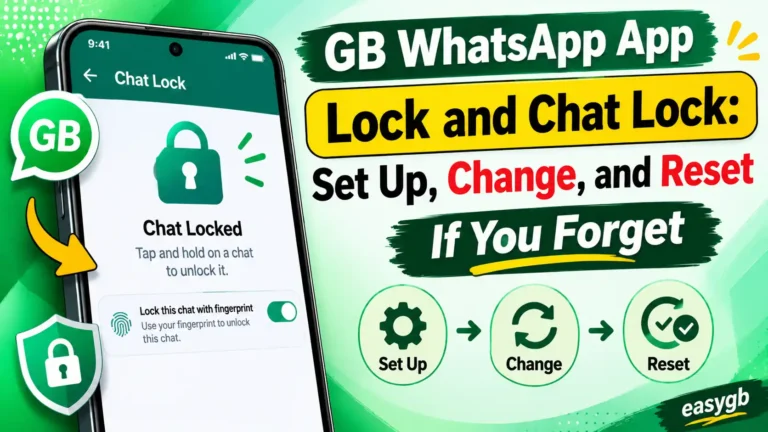
Chat Lock is the more modern approach to hiding chats. It uses your device’s existing security setup, meaning your fingerprint, face recognition, or device PIN, to protect specific conversations. When you lock a chat, it moves into a “Locked Chats” folder that sits at the top of your chat list but requires authentication to open.
The additional layer that makes Chat Lock especially private is the Secret Code feature. You can set a custom code that completely hides the Locked Chats folder from your main screen. The folder only reappears when you type that specific code into GB WhatsApp’s search bar. To anyone looking at your phone, the locked chats simply do not appear anywhere.
How to Lock a Chat Using Chat Lock
- Open GB WhatsApp and go to the Chats tab.
- Long press the chat you want to lock until it is selected.
- Tap Lock Chat from the options that appear in the toolbar or three-dot menu.
- Authenticate using your fingerprint, PIN, or face recognition when prompted. This confirms the lock.
- The chat moves to the Locked Chats folder and disappears from your main chat list.
Chat Lock only works if your Android device has a screen lock set up. If your phone has no PIN, pattern, or fingerprint configured, the Chat Lock option will not appear or will not function. Set up device security first in your Android Settings, then return to GB WhatsApp to use this feature.
How to Set a Secret Code to Hide the Locked Chats Folder
- Open the Locked Chats folder by swiping down on the main chat list and tapping it.
- Tap the three-dot menu inside the Locked Chats folder.
- Select Locked Chats Settings or Chat Lock Settings.
- Tap Secret Code and enter a custom code of your choice. You can use letters, numbers, or a combination.
- Toggle on Hide Locked Chats. The folder disappears from your main screen entirely.
- To access your locked chats in the future, type your secret code into the WhatsApp search bar. The Locked Chats folder will appear in the search results.
Archive vs Pattern Hide vs Chat Lock: Full Comparison
Choosing the right method depends entirely on what you are trying to protect and from whom. Here is a side-by-side breakdown of all three options so you can pick the right one for your situation.
| Feature | Archive | Pattern Hide | Chat Lock |
|---|---|---|---|
| Password required | No | Yes (pattern) | Yes (biometric or PIN) |
| Folder visible to others | Yes (Archived folder) | No (accessed via logo tap) | No (swipe down or secret code) |
| Notifications hidden | Partly (depends on settings) | Yes (content concealed) | Yes (name and content concealed) |
| Can hide the folder itself | No | Yes (by design) | Yes (via Secret Code) |
| Works for group chats | Yes | Yes | Yes |
| Messages deleted | Never | Never | Never |
| GB WhatsApp exclusive | No | Yes | No |
| Best for | Decluttering inbox | Hiding from other app users | Maximum privacy and security |
Use Archive when your goal is organization. Use Pattern Hide when you want a GB-native solution that keeps things discreet. Use Chat Lock when you need the strongest protection and want to combine it with a Secret Code that hides the locked folder completely.
How to Unhide and Unlock Chats in GB WhatsApp
Unhiding a chat moves it back to your main chat list permanently. Here is how to do it for each method.
How to Unarchive a Chat
- Open the Archived folder at the bottom of your chat list.
- Long press the chat you want to unarchive.
- Tap the three-dot menu and select Unarchive.
- The chat moves back to your main chat list immediately.
How to Unhide a Pattern-Hidden Chat
- Access the hidden chats folder by tapping the GB WhatsApp text or logo in the top left of your chat screen.
- Enter your pattern to open the hidden folder.
- Long press the chat you want to unhide.
- Tap the three-dot menu and select Unhide or Mark as Visible.
- The chat returns to your main chat list and is no longer in the hidden folder.
How to Unlock a Chat Lock Chat
- Open the Locked Chats folder by swiping down on the chat list (or via your Secret Code in the search bar).
- Authenticate and open the conversation you want to unlock.
- Tap the contact’s name or group name at the top of the chat to open the chat info screen.
- Toggle Chat Lock off.
- Confirm with your fingerprint, face recognition, or PIN.
- The chat moves back to your main chat list immediately.
None of these steps delete any messages. Everything that was in the conversation before you hid it stays intact after you unhide it. If you are concerned about your message history, our guide on restoring GB WhatsApp chats explains how the backup system works in full.
What Happens to Notifications from Hidden Chats
This is one of the most important things to understand before you hide a chat, and most guides skip it entirely. When a contact sends you a message on a hidden or locked chat, you still receive a notification on your phone. The app does not block incoming messages. What changes is what the notification reveals.
Instead of showing the sender’s name and a preview of the message content, the notification displays only a generic alert. It typically says something like “New message” or “1 message” with no identifying details. The contact name and the message text are not visible on your lock screen, in your notification shade, or anywhere else outside the app.
This protects you in a common scenario: someone is nearby when a message arrives from a contact you have hidden. They see the notification appear, but they cannot read who it is from or what it says. The content stays behind the authentication layer where you put it.
Notification hiding applies to messages only. If a contact from a locked or hidden chat calls you on GB WhatsApp, the call comes through as a regular incoming call with the caller’s name visible. If call privacy is also important to you, that requires a separate setting in GB WhatsApp’s privacy controls.
For users who want complete control over how GB WhatsApp notifications behave, including customizing what appears on the lock screen and in the notification shade, our complete guide on GB WhatsApp notification settings covers every option in detail.
Forgot Your Pattern or PIN for Hidden Chats? Here Is What to Do
Forgetting the pattern for your hidden chats is one of the most common problems users face. The good news is that GB WhatsApp gives you a recovery option when you set up the pattern for the first time. The less good news is that if you skipped the security questions during setup, your options become very limited.
Recovery via Security Questions
When you first set up the pattern lock for hidden chats, GB WhatsApp asks you to create two security questions and answers. If you answered those questions, follow these steps:
- Tap the GB WhatsApp text or logo in the top left of your chat screen to open the pattern entry screen.
- Look for a Forgot Password or Forgot Pattern link on that screen and tap it.
- Answer your two security questions exactly as you entered them during setup.
- GB WhatsApp lets you set a new pattern and regain access to your hidden chats.
Recovery via Reset (Last Resort)
Resetting Hidden Mode removes all chats that were inside the hidden folder. The conversations themselves are deleted from the device. This action cannot be undone unless you have a backup that includes those chats. Only proceed if you are certain there is no other way in and you are prepared to lose the hidden conversations.
If you do not remember your security questions or did not set them up, the only remaining option is to reset Hidden Mode:
- Open GB WhatsApp and tap the three-dot menu.
- Go to GB Settings and select Privacy.
- Find Hidden Mode or Hidden Chats in the list.
- Select Reset Hidden Mode and confirm the action.
- All hidden chats are erased and the pattern is cleared. You can set up a new pattern from scratch.
For Chat Lock (Method 3), forgetting a Secret Code is handled differently. Go to WhatsApp Settings then Privacy then Chat Lock and choose “Unlock and clear locked chats”. This removes the secret code and returns all locked chats to your main list. The messages themselves are not deleted by this action, only the lock is removed.
Troubleshooting Common Problems with Hidden Chats
Chat Lock Option Not Showing Up
The most common reason Chat Lock is missing from your options is that your Android device does not have a screen lock enabled. GB WhatsApp and official WhatsApp both require your device to have a PIN, pattern, fingerprint, or face recognition set up before they will activate Chat Lock. Go to your Android Settings then Security and configure a device screen lock. Then reopen GB WhatsApp and try again.
If your device already has a screen lock and Chat Lock still does not appear, update GB WhatsApp to the latest version. Older builds did not include the full Chat Lock implementation. The latest GB WhatsApp version is available at EasyGB, where the APK is kept current.
Swipe Down Does Not Show the Locked Chats Folder
If swiping down on the chat list does not reveal the Locked Chats folder, one of these things is happening. You may have enabled “Hide Locked Chats” with a Secret Code, which removes the folder from the visible interface entirely. In that case, type your secret code into the search bar. Alternatively, you may not have locked any chats yet, so the folder does not exist. Try locking a chat first, then swipe down again.
Hidden Chat Count Showing on Main Screen
Some older GB WhatsApp builds display a count on the main screen showing how many chats are hidden. This is a known bug in certain versions. Updating to a newer build resolves it. If you must stay on the current version temporarily, the count does not expose the contents of the chats, only the number of hidden conversations.
Hidden Chats Reappearing After an Update
Major version updates to GB WhatsApp occasionally reset privacy settings, including the hidden chat configuration. If your previously hidden chats have reappeared after an update, re-hide them using your preferred method. It is also worth checking your hidden folder first to confirm the chats are not simply visible there again rather than actually moved to the main list.
Cannot Find the GB WhatsApp Logo or Text to Access Hidden Chats
Some custom header configurations in GB WhatsApp settings hide or replace the default logo in the top left corner. Go to GB Settings then Home Screen then Header and check that the WhatsApp label or logo is visible. Enable it if it has been turned off, and the tap-to-access-hidden-chats gesture will work again.
Can Someone Else See Your Hidden Chats in GB WhatsApp?
This question comes up often, and the answer depends on which method you used and what credentials that other person has access to.
If you used Pattern Hide (Method 2), someone else cannot access your hidden chats without knowing your specific pattern. The entry point itself, the top-left logo tap, is not obvious to a casual user. Someone who does not know the gesture exists will not find the hidden folder at all.
If you used Chat Lock (Method 3) without a Secret Code, someone who swipes down on your chat list will see that a Locked Chats folder exists. They cannot open it without your fingerprint, face, or PIN. With a Secret Code and Hide Locked Chats enabled, the folder does not appear even when they swipe down.
If you used Archive, there is minimal privacy. Anyone who scrolls to the bottom of your chat list and taps the Archived label can see those conversations with no authentication at all.
One more important boundary to understand: you can only see your own hidden chats. You cannot access another person’s hidden or locked chats on their device, even if you use GB WhatsApp yourself. The hidden chat system is entirely local to each individual’s device.
For a broader look at how GB WhatsApp handles security and what risks to be aware of, our detailed guide on GB WhatsApp safety covers the full picture.
If you are deciding between GB WhatsApp’s hiding features and what the official WhatsApp now offers natively, the full feature comparison between GB WhatsApp and official WhatsApp breaks down exactly what each app offers and where the differences matter.
Frequently Asked Questions About Hiding Chats in GB WhatsApp
Does hiding a chat in GB WhatsApp delete the messages?
No. Hiding a chat in GB WhatsApp does not delete any messages. All your conversation history stays completely intact inside the hidden or locked folder. The chat simply moves out of your main chat list. You can access and read all messages the moment you unhide or unlock the chat again.
Will the other person know if I hide their chat in GB WhatsApp?
No. Hiding a chat is a local action on your device only. The other person receives no notification of any kind. They can still message you normally, and their messages will be delivered to your phone. The only change is that the conversation no longer appears in your main chat list when you open the app.
How do I find hidden chats in GB WhatsApp?
It depends on which method you used. If you used Pattern Hide, tap the “GB WhatsApp” text in the top left of the main chats screen and enter your pattern. If you used Chat Lock, swipe down on the main chat list and tap “Locked Chats”, then authenticate. If you used Archive, scroll to the bottom of your chat list and tap “Archived”. If you set a Secret Code to hide the Locked Chats folder, type your secret code into WhatsApp’s search bar to surface it.
Can I hide a group chat in GB WhatsApp?
Yes. GB WhatsApp lets you hide both individual chats and group chats using all three methods. For the Pattern Hide, long press the group, tap the three-dot menu, and select Hide. For Chat Lock, long press the group and select Lock Chat. The process is effectively identical to hiding a one-to-one conversation.
What happens to notifications when a chat is hidden in GB WhatsApp?
Notifications from hidden or locked chats still reach your phone, but the content is concealed. Instead of showing the sender’s name and message preview, your notification bar shows only a generic “New message” alert with no identifying details. This protects your privacy when your phone screen is visible to others nearby.
I forgot my pattern for hidden chats in GB WhatsApp. What do I do?
If you set up security questions during the initial pattern setup, tap “Forgot Password” on the pattern entry screen and answer those questions to reset your pattern. If you did not set security questions, your only option is to reset Hidden Mode via GB Settings then Privacy then Hidden Mode then Reset Hidden Mode. Warning: this permanently deletes all hidden chats and cannot be undone without a prior backup.
What is the difference between Archive and Hide in GB WhatsApp?
Archive moves a chat to an Archived folder with no password. Anyone who scrolls to the bottom of your chat list can open it. It is best for decluttering your inbox, not for privacy. The Pattern Hide feature moves the chat to a secure hidden folder that requires a pattern or PIN to open. It is a true privacy tool. Chat Lock adds biometric authentication on top of the same concept.
Can someone else access my hidden chats on GB WhatsApp?
Not without your pattern or PIN. The hidden chat folder and the Locked Chats folder both require authentication to open. As long as your pattern or device PIN is not known to others, your hidden chats remain inaccessible. If someone has your device unlock credentials, they could potentially access your chats, which is why using a unique pattern just for hidden chats is a smart precaution.
Does Chat Lock in GB WhatsApp work the same as in official WhatsApp?
Yes, the Chat Lock behavior in GB WhatsApp is functionally the same as in the official WhatsApp. Chats go to a Locked Chats folder, notifications hide the message content, and you authenticate with fingerprint, PIN, or face recognition. GB WhatsApp also retains its older pattern-based Hide feature as an additional option that the official app does not offer.
Why is my Chat Lock option not showing in GB WhatsApp?
The most common reason is that your Android device does not have a screen lock set up. GB WhatsApp requires device security (PIN, pattern, or fingerprint) to activate Chat Lock. Set up a device screen lock in your Android Settings and then reopen GB WhatsApp. If the option still does not appear, update to the latest GB WhatsApp version and restart the app.
Are hidden chats included in GB WhatsApp backups?
Yes. Both archived and locked chats are included in your GB WhatsApp backup. If you restore from a backup on a new device, the messages from those conversations will come back. However, the lock or pattern configuration does not automatically carry over. You will need to re-apply the hide or lock settings after restoring from a backup.
Verdict: Pick the Method That Matches Your Privacy Need
GB WhatsApp gives you three genuinely different ways to hide a chat, and each one solves a different problem. Archive is for tidying up your inbox. The GB-exclusive Pattern Hide is for keeping specific conversations away from anyone who picks up your phone. Chat Lock with a Secret Code is the most airtight option, hiding not just the chats but the folder that holds them.
The most important thing to remember is to set up your security questions when you first create a pattern. That single step saves you from the worst outcome: having to reset Hidden Mode and lose all your hidden conversations permanently. Beyond that, the choice of method is yours to make based on how much protection you actually need.
All of this only works reliably on the latest version of the app. Get the current GB WhatsApp APK from EasyGB to make sure your hiding features work correctly and that you have access to the full Chat Lock and Secret Code implementation.
Sources and References
- WhatsApp Official Help: Turn Chat Lock On or Off: faq.whatsapp.com
- TechCrunch: WhatsApp Now Lets You Lock and Hide Individual Chats: techcrunch.com
- Wondershare MobileTrans: How to Find Hidden Chats on GB WhatsApp: mobiletrans.wondershare.com