Updated October 2026
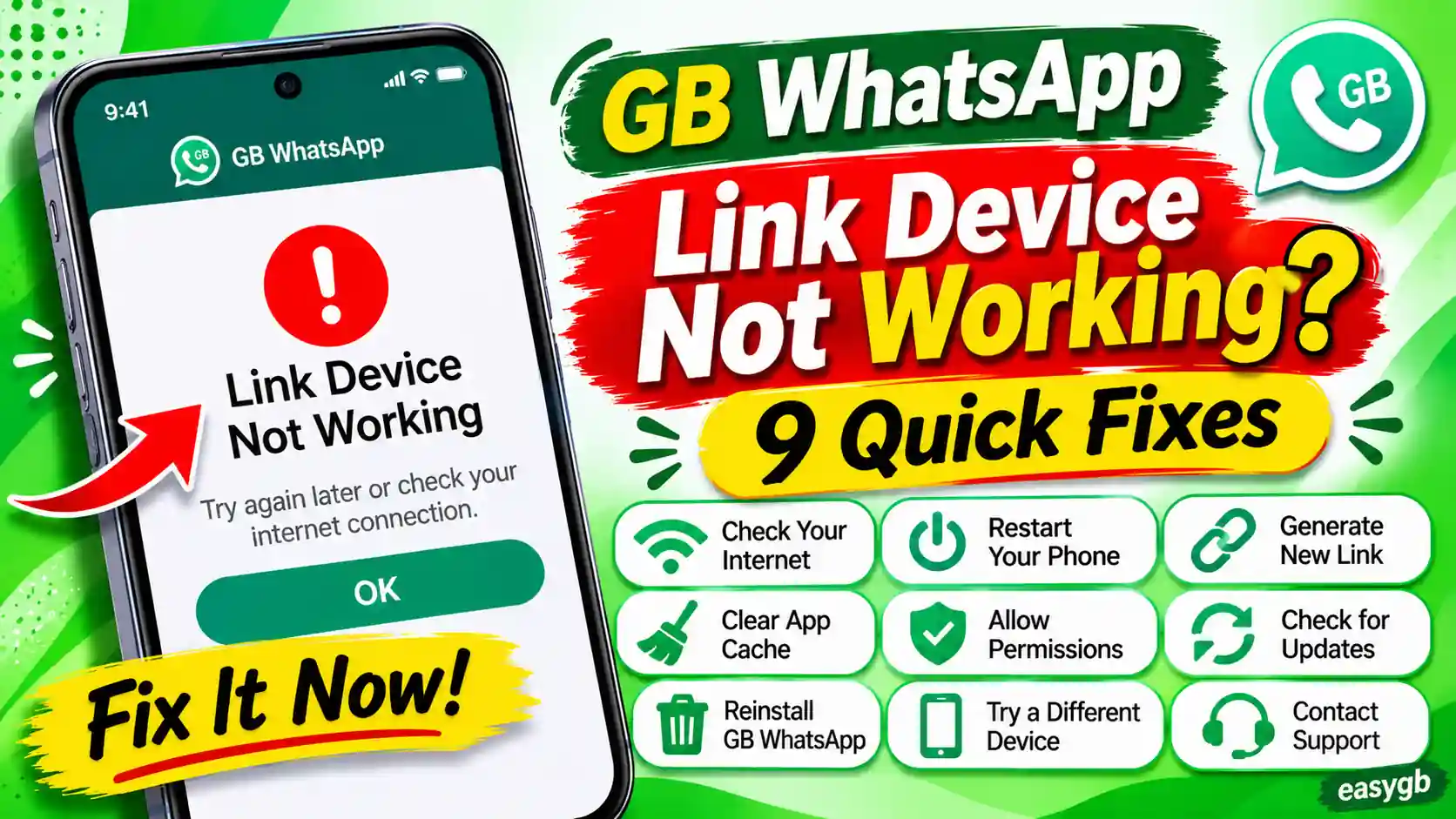
GB WhatsApp Link Device Not Working or QR Code Won’t Scan: 9 Fixes That Actually Work
You open Linked Devices, a QR code appears on your screen, and then nothing happens. Or it scans but throws a “Could not link device” error and leaves you stuck. This guide explains every reason this breaks in GB WhatsApp and gives you the exact steps to fix each one.
Could Not Link Device
Make sure you are connected to the internet and try again.
Cancel
The “Could Not Link Device” Error
This screen appears when GB WhatsApp cannot complete the secure handshake with WhatsApp Web or the desktop app. It is not always a network problem. An expired QR code, a denied camera permission, an outdated GB WhatsApp version, or an active VPN can all trigger the exact same message. The fix is different for each cause, and this guide walks through all of them.
Force-close GB WhatsApp, reopen it, and navigate to three-dot menu › Linked Devices › Link a Device. On your computer, press F5 to generate a fresh QR code, then scan it within 30 seconds. Hold your phone 8 to 12 inches from the screen at full brightness. If the QR code still will not link, work through the nine fixes below in order: check camera permission, reset your internet connection, clear the app cache, update GB WhatsApp to the latest version, and remove old linked sessions that may be blocking the new one.
Table of Contents 14 sections
- How Link Device Works in GB WhatsApp
- Why the QR Code Won’t Scan: 6 Causes
- Why Link Device Keeps Failing: 7 Causes
- Fix 1: Refresh the QR Code Properly
- Fix 2: Grant Camera Permission
- Fix 3: Stabilize Your Internet Connection
- Fix 4: Clear GB WhatsApp Cache
- Fix 5: Update GB WhatsApp
- Fix 6: Remove Old Linked Sessions
- Fix 7: Disable VPN and Fix Your System Clock
- Fix 8: Switch Browser or Use Incognito Mode
- Fix 9: Link with Phone Number Instead of QR
- GB WhatsApp-Specific Issues
- Frequently Asked Questions
How Link Device Works in GB WhatsApp
Understanding the process behind device linking saves you a lot of guesswork when it breaks. GB WhatsApp supports the same Linked Devices system as official WhatsApp. Your primary phone stays the account owner. You connect up to four companion devices — a laptop, tablet, or second phone — without needing your phone to stay online after the initial link.
Here is what happens the moment you scan a QR code:
- QR code generation: WhatsApp Web or the desktop app creates a time-sensitive token and encodes it as a QR code. The code rotates every 30 to 60 seconds for security.
- Scanning: GB WhatsApp’s built-in scanner reads that token through your phone’s camera. You must use the scanner inside GB WhatsApp, not your system camera app.
- Authentication handshake: GB WhatsApp sends the token alongside your encrypted account credentials to WhatsApp’s servers. This step requires a stable internet connection on both devices.
- Session creation: WhatsApp’s servers verify the credentials, create a new session, and push your recent message history to the companion device.
Every one of these four steps can fail for a different reason. An expired token, a missing camera permission, a dropped network, a clock mismatch, or an outdated version of GB WhatsApp that cannot complete the secure handshake. Each has its own fix, and the sections below cover them all.
Device limit: GB WhatsApp supports up to four companion devices simultaneously, matching the official app’s cap. Your primary phone does not count toward this limit. If you have already linked four devices, a fifth attempt will always fail until you remove an existing session.
Why the QR Code Won’t Scan in GB WhatsApp
When the QR code appears on screen but GB WhatsApp cannot read it, one of these six causes is almost always responsible. Find the one that matches your situation and jump straight to the fix.
| Cause | What You Notice | Fix |
|---|---|---|
| QR code expired | Code stops moving or a circular refresh icon appears over it | Fix 1 |
| Camera permission denied | Scanner opens as a black screen or freezes immediately | Fix 2 |
| Using the wrong scanner | Phone camera opens a WhatsApp chat link instead of linking | Fix 2 |
| Screen brightness too low | Scanner moves around without locking onto the code | Fix 1 |
| Dark mode browser extension | QR code looks inverted, grey, or washed out | Fix 8 |
| Dirty or smudged camera lens | Everything in the scanner looks slightly blurry | Fix 1 |
Never use your phone’s default camera app to scan the QR code. Your system camera will try to open a WhatsApp profile or chat link, not link a device. Always scan from inside GB WhatsApp: three-dot menu › Linked Devices › Link a Device.
Why Link Device Keeps Failing in GB WhatsApp
The QR code scanned cleanly but the device still did not link? That is a different problem. These are the seven most common reasons the linking handshake fails after a successful scan.
- Outdated GB WhatsApp version: WhatsApp updates its server communication protocol regularly. An old GB WhatsApp build may no longer be able to complete the secure authentication, causing the link to silently fail after the scan. This is the most common cause in 2026.
- Active VPN on your phone: WhatsApp’s servers sometimes block or rate-limit requests from VPN IP addresses, especially data center IPs from well-known providers. The QR code scans, but the handshake never finishes.
- Wrong system clock or time zone: The linking process uses time-based cryptographic tokens. If your phone’s clock is even a few minutes off, the token arrives at the server already expired. The fix is to enable automatic date and time in your phone’s settings.
- Corrupted app cache: Stale or broken temporary files can interrupt the authentication at any stage. Clearing the cache is a fast fix with no data loss risk.
- Four-device limit already reached: If four companion devices are already connected, every new linking attempt will fail without any useful error message. You must remove one first.
- Low storage space on your phone: WhatsApp downloads recent message history to your phone during linking. If your internal storage is nearly full, the process stalls before completion.
- WhatsApp server outage: On rare occasions, WhatsApp’s linking service is temporarily unavailable. If everything else looks fine, check status.whatsapp.com to rule this out. No local fix helps during a server-side disruption.
Fix 1: Refresh the QR Code and Scan at the Right Moment
The most common reason a QR code will not link is simply that it expired before you could scan it. WhatsApp Web generates a new code every 30 to 60 seconds by design. If you spend even a moment navigating to the scanner on your phone after the code appeared, you may already be trying to scan a dead code. The fix is about timing, not technology.
- On your phone, open GB WhatsApp and navigate to three-dot menu › Linked Devices › Link a Device first. Keep the scanner screen open and ready.
- On your computer, press F5 (Windows and Linux) or Cmd + R (Mac) to force a fresh QR code. This resets the 60-second clock.
- Turn your computer screen brightness to maximum. Low contrast is an invisible scanner killer.
- Hold your phone 8 to 12 inches from the screen. Too close or too far and the camera cannot frame the full pattern.
- Scan immediately after the new code appears. Do not wait for it to fully load — it is readable the moment it renders.
Glare tip: If the room has strong light reflecting off your screen, tilt the monitor slightly away from the light source before scanning. Glare washes out the dark modules that the scanner reads, making an otherwise perfect code unreadable.
Camera lens tip: Wipe your phone’s rear camera lens with a soft cloth before scanning. A smudged lens causes the camera to struggle with high-contrast patterns like QR codes even when the QR code itself is perfectly clear.
Fix 2: Check and Grant Camera Permission to GB WhatsApp
If the scanner screen opens to a black screen, or the camera appears frozen the moment you enter Linked Devices, GB WhatsApp has been denied camera access. Android can revoke app permissions automatically after an OS update, or you may have tapped “Deny” during installation without realizing what that would affect.
- Open your phone’s Settings app.
- Tap Apps (sometimes called Application Manager or Installed Apps depending on your Android version).
- Find and tap GB WhatsApp in the list.
- Tap Permissions, then tap Camera.
- Select Allow or Allow only while using the app.
- Return to GB WhatsApp and try scanning again.
Use the right scanner: Open GB WhatsApp first, then go to three-dot menu › Linked Devices › Link a Device. That is the only scanner that can link a device. Using your phone’s default camera, a barcode reader app, or any third-party scanner will fail because those apps handle the QR token differently.
Fix 3: Stabilize Your Internet Connection on Both Devices
Device linking requires a stable connection on both your phone and the computer you are linking. A scan that succeeds on the phone but finds a dropped connection between the two devices will silently time out. Full signal bars do not guarantee a usable connection — congestion, packet loss, or a VPN can cause the handshake to stall even on a five-bar network.
Work through these checks in order:
- Toggle airplane mode on your phone for 10 seconds, then turn it off. This forces a fresh network registration and often clears connection stalls caused by stale routing.
- Check background data restrictions. Go to Settings › Data Usage › GB WhatsApp and make sure “Background Data” and “Unrestricted data usage” are both enabled. A restricted background data setting can prevent the authentication packet from going through.
- Restart your router. Unplug it for 30 seconds and plug it back in. This is especially worth trying if the QR code spins endlessly without loading on your computer.
- Switch to a different network on your computer. Some corporate, school, or hotel networks block WebSocket connections, which is what WhatsApp Web uses to maintain sessions. Try using your phone’s mobile hotspot for the computer if you are on such a network.
- Check WhatsApp’s server status. If there is an ongoing disruption at status.whatsapp.com, wait it out. Nothing on your end will resolve a server-side outage faster than WhatsApp can fix it.
Fix 4: Clear the GB WhatsApp App Cache
GB WhatsApp stores temporary files that help it run faster. If any of these files are corrupted or outdated, they can quietly block the linking process without producing a clear error message. Clearing the cache is safe — it does not delete your messages, contacts, or media. The app rebuilds the cache from scratch the next time it needs it.
Clear cache on your phone:
- Open Settings on your Android phone.
- Tap Apps, then find and tap GB WhatsApp.
- Tap Storage.
- Tap Clear Cache. Do not tap Clear Data unless you are prepared to log back in. Clear Data removes your local app data, not just temp files.
- Reopen GB WhatsApp and try the QR scan again.
Clear cache in your browser (for WhatsApp Web users):
- In Chrome, press Ctrl + Shift + Delete (Cmd + Shift + Delete on Mac).
- Set the time range to All time.
- Check both Cookies and other site data and Cached images and files.
- Click Clear data, then reload web.whatsapp.com and scan a fresh QR code immediately.
Before clearing anything, it is a good idea to create a GB WhatsApp backup. The cache clear will not touch your chats, but backing up costs nothing and protects you in case you accidentally tap the wrong button.
Fix 5: Update GB WhatsApp to the Latest Version
This is the fix that solves the problem for most people who have tried everything else. WhatsApp continuously updates the cryptographic protocol it uses to authenticate linked devices. A version of GB WhatsApp that is more than a few months old may no longer speak the same language as WhatsApp’s current servers. The QR code will scan, the spinner will run, and then the error will appear. The version simply cannot complete the handshake.
Since GB WhatsApp is not distributed through the Google Play Store, it does not update automatically. You must download and install the new APK manually. The EasyGB homepage is kept up to date with the latest verified GB WhatsApp release.
Only install GB WhatsApp from a trusted source. Dozens of unofficial sites distribute outdated or tampered APK files. Some of those files contain the same old version that is breaking your linking. Worse, some are modified with malicious code. Our guide on whether GB WhatsApp is safe explains exactly what to check before installing any APK.
You do not need to uninstall the old version first. Install the new APK directly over the existing installation. Your chats, contacts, and settings will stay intact. After the update, open GB WhatsApp, go to Linked Devices, and try linking the device again.
If you want to compare your current version to what is available, check the GB WhatsApp old versions page to see the full release history and confirm you are running the newest build.
Fix 6: Remove Old Linked Device Sessions
GB WhatsApp, like official WhatsApp, supports up to four companion devices at one time. If you have hit that limit, any new linking attempt will fail silently. Beyond the four-device cap, old sessions that were never formally logged out can also create conflicts during a new linking attempt, particularly if they belong to devices that no longer exist or have been factory reset.
- Open GB WhatsApp on your phone.
- Tap the three-dot menu in the top right corner.
- Tap Linked Devices. You will see all currently active sessions with device names and last-active timestamps.
- Tap on any device you no longer use or do not recognize.
- Tap Log Out to remove it. The session will be terminated immediately.
- Wait about 30 seconds after removing the old sessions, then try linking your new device.
Security check: If you see a device in your linked list that you do not recognize, remove it immediately. That unknown device has full real-time access to all of your conversations. Reviewing your linked devices periodically is a good habit to build.
Fix 7: Disable VPN and Correct Your System Clock
Two easy-to-overlook settings can completely block the device linking process on their own. Neither produces a clear error message that points to itself as the cause.
Disable Your VPN Before Linking
WhatsApp’s authentication servers sometimes reject or rate-limit requests coming from VPN IP addresses, particularly IP ranges associated with commercial VPN data centers. The QR code appears to scan successfully, but the session handshake never completes because the server does not accept the response. Turn off your VPN on both your phone and your computer before attempting to link. You can turn it back on once the device is linked and actively syncing.
Fix Your Phone’s System Clock
WhatsApp’s linking system uses time-based cryptographic tokens. If your phone’s clock is even a few minutes off from the correct time, those tokens arrive at the server with the wrong timestamp and are rejected as invalid. This is a surprisingly common cause of persistent linking failures, especially after traveling across time zones.
- Open Settings on your Android phone.
- Go to General Management or System depending on your Android version.
- Tap Date and Time.
- Enable both Automatic date and time and Automatic time zone.
- Restart GB WhatsApp and try linking again.
Fix 8: Switch Browser or Open an Incognito Window
If you are using WhatsApp Web in a browser and the QR code does not load, refuses to scan, or loads but disappears before you can scan it, the browser itself may be at fault. Two specific culprits come up repeatedly: dark mode extensions and stale session cookies from a previous WhatsApp Web login.
Try Incognito or Private Browsing Mode First
Press Ctrl + Shift + N in Chrome (or Ctrl + Shift + P in Firefox) to open a private window. Incognito mode disables extensions and starts with a clean session. Navigate to web.whatsapp.com. If the QR code loads and scans correctly here but not in your regular window, the issue is an installed extension or a corrupted session cookie, not a deeper problem.
Disable Dark Mode Extensions
Extensions like Dark Reader invert the colors of web pages. When applied to a QR code, the dark and light modules swap, making the pattern unreadable to a phone scanner. Temporarily disable all browser extensions, reload WhatsApp Web, and scan again. If it works after disabling extensions, re-enable them one by one to find the culprit, then whitelist web.whatsapp.com in that extension’s settings.
Switch to a Supported Browser
WhatsApp Web officially supports Chrome 100 and later, Firefox 115 and above, Safari 15 and above, and Edge 100 and later. Internet Explorer is not supported at all. If you are on an older version of any browser, update it or switch to a supported one before trying again.
Fix 9: Use the Phone Number Method Instead of the QR Code
This is the option most people never try because they do not know it exists. WhatsApp Web and the desktop app have a second linking method that requires no QR code at all. Instead of scanning, you enter your phone number on the computer, and WhatsApp generates an 8-character code that you type into GB WhatsApp on your phone. It is faster, more reliable when QR codes are misbehaving, and does not depend on your phone’s camera at all.
- On your computer, open WhatsApp Web at web.whatsapp.com or open the WhatsApp Desktop app.
- Below the QR code, find and click “Link with phone number”.
- Select your country code from the dropdown and enter the phone number registered to your GB WhatsApp account. Click Next.
- WhatsApp Web will display a unique 8-character alphanumeric code on your computer screen. This code expires in about 60 seconds, so move quickly.
- On your phone, open GB WhatsApp and navigate to three-dot menu › Linked Devices › Link a Device.
- At the bottom of the QR scanner screen, tap “Link with phone number”.
- Type the 8-character code exactly as shown on your computer. The devices will link within seconds.
Have your phone open on the Linked Devices screen before you click “Link with phone number” on the computer. The 8-character code expires quickly, and having the phone ready means you can type it in before it resets.
Quick Reference: Which Fix Solves Which Error
Use this table to jump straight to the right fix without reading everything above.
| Error or Symptom | Most Likely Cause | Go to Fix |
|---|---|---|
| QR code spins or shows a refresh icon | Code expired before scan | Fix 1 |
| Scanner screen is completely black | Camera permission denied | Fix 2 |
| Scan succeeds but nothing links | Network drop or VPN blocking the handshake | Fix 3, Fix 7 |
| “Could not link device” error | Outdated GB WhatsApp version | Fix 5 |
| QR code loads but won’t scan | Dark mode extension or low screen brightness | Fix 8 |
| Maximum devices already connected | 4-device session limit reached | Fix 6 |
| Linked but messages not syncing | Cache issue or battery optimization killing GB WhatsApp | Fix 4 |
| “This device is no longer linked” | Session expired after 14 days or was logged out | Fix 1 (rescan) |
| QR scan fails but phone number method works | Camera permission or browser rendering issue | Fix 9 |
GB WhatsApp-Specific Issues That Official WhatsApp Does Not Have
Beyond the general WhatsApp Web troubleshooting steps, a few problems apply only to GB WhatsApp users because of the nature of the app. These are worth knowing if the fixes above have not resolved your issue.
Running a Very Old or Unsupported Version
Because GB WhatsApp is not on the Play Store, it never updates automatically. Many users continue using the same version for months or even years without realizing that WhatsApp’s servers have moved on. If you downloaded your copy from a random website a long time ago, it is very likely that version can no longer authenticate linked devices. Check the GB WhatsApp version history to see how old your build is and update if needed.
Tampered or Untrusted APK Files
Some GB WhatsApp APK files circulating online are modified versions of modified versions, created by people who have no connection to the original GB WhatsApp developers. These unofficial builds sometimes have altered network handling code that breaks the authentication process at a deep level. If none of the nine fixes in this guide resolved the issue, the APK source is the most likely culprit. Reinstall GB WhatsApp from a reliable source and start fresh. Understanding the differences between GB WhatsApp and official WhatsApp also helps you know what a legitimate build should and should not do.
GB WhatsApp on iOS Does Not Support APK Linking
GB WhatsApp is an Android-only application. If you are on an iPhone and trying to link a device through a GB WhatsApp build, the process will fail because the app is not designed for iOS at the APK level. Check our GB WhatsApp for iOS guide for the correct approach on Apple devices.
Battery Optimization Disconnecting Linked Sessions
Linked device sessions in GB WhatsApp require the app to maintain a background connection to WhatsApp’s servers. Android’s aggressive battery optimization on many phones, including Samsung, Xiaomi, OnePlus, and Oppo devices, will kill this background process after a period of inactivity. The result is that your linked devices disconnect on their own every day or two. The fix is to go to Settings › Battery › find GB WhatsApp and set its battery usage to Unrestricted. Our GB WhatsApp notifications guide walks through this process in detail, as it affects both notifications and linked device sync.
Frequently Asked Questions
Why does the GB WhatsApp QR code keep expiring before I can scan it?
WhatsApp Web QR codes expire every 30 to 60 seconds on purpose. This rotation prevents someone from capturing a screenshot of your QR code and using it to link their own device to your account without your knowledge. The practical fix is to have GB WhatsApp open on the Link a Device scanner screen before you refresh the QR code on your computer. That way you can scan the instant the new code renders, well within the expiry window.
How many devices can I link to one GB WhatsApp account?
You can link up to four companion devices simultaneously. Your primary phone does not count toward this limit. If you have already linked four devices and want to add a fifth, go to Linked Devices in GB WhatsApp and log out one of the existing sessions first. After removing it, wait 30 seconds and try linking the new device.
Can I use GB WhatsApp Web without keeping my phone nearby?
Yes. Once the device is linked, the companion device works independently. Your phone does not need to stay connected or nearby for everyday messaging on the linked device. The only requirement is that your phone reconnects to WhatsApp’s servers at least once every 14 days. If it goes offline longer than that, all linked sessions will disconnect automatically and you will need to scan or use the phone number method again to relink.
The QR code scans but GB WhatsApp shows “This device is no longer linked.” What does that mean?
This message appears when a session that was previously active has since been disconnected. The most common reasons are: someone manually logged it out from the Linked Devices menu on the phone, the session hit the 14-day offline expiry, or the app was reinstalled on either device. The fix is simple: generate a fresh QR code on the companion device and scan it again from the Linked Devices screen in GB WhatsApp on your phone. Or use the phone number method from Fix 9 above.
Does clearing GB WhatsApp cache delete my chat messages?
No. Clearing the cache only removes temporary files the app created to speed things up. Your messages, contacts, and media files are stored in the app’s data partition, not the cache. Tapping Clear Cache in the Storage settings is completely safe. If you want extra peace of mind before clearing anything, create a local backup first through GB WhatsApp’s Chats › Chat Backup option.
GB WhatsApp link device works on Wi-Fi but not on mobile data. Why?
Some mobile carriers use carrier-grade NAT or data traffic shaping that interferes with the WebSocket connections WhatsApp Web depends on. If linking works on Wi-Fi but fails on mobile data, try switching your mobile data network mode in Settings › Mobile Networks › Network Mode. Toggling between 4G and 3G sometimes routes traffic through a different path that bypasses the interference. Use Wi-Fi for the initial linking if mobile data continues to fail — normal messaging works fine on mobile data once the device is linked.
My linked device keeps disconnecting every few days on its own. How do I stop this?
Automatic disconnections almost always happen because Android’s battery optimizer is killing GB WhatsApp in the background. When the app is force-closed by the system, it cannot maintain the persistent connection required for linked device sessions. Go to Settings › Battery › App battery usage, find GB WhatsApp, and change its setting to Unrestricted. On some Samsung and Xiaomi phones, you also need to go to Battery › Background usage limits and make sure GB WhatsApp is not on the restricted list.
Can I link GB WhatsApp to a second Android phone rather than a computer?
Yes. Install the official WhatsApp app on the second phone. When you open it for the first time, look for the option to link it as a companion device rather than registering a new phone number. On the second phone, WhatsApp will display a QR code. Scan that QR code using the Linked Devices scanner in GB WhatsApp on your primary phone, or use the phone number method. The second phone will then sync your account as a companion device.
Is keeping multiple devices linked to GB WhatsApp safe?
Every linked device has full real-time access to your messages. That means anyone with physical or remote access to a linked device can read all of your conversations. Review your linked devices list regularly from the Linked Devices menu in GB WhatsApp. Log out anything you do not recognize or no longer actively use. For a full picture of the security considerations, read our dedicated guide on GB WhatsApp safety.
One Comment