“You Need the Official WhatsApp to Use This Account”: What It Means and How to Fix It (2026)
Seeing this message when you open GB WhatsApp or try to verify your number? Good news: it is usually not a ban. Here is exactly what it means, how to keep every chat, and the four fixes that work in 2026.
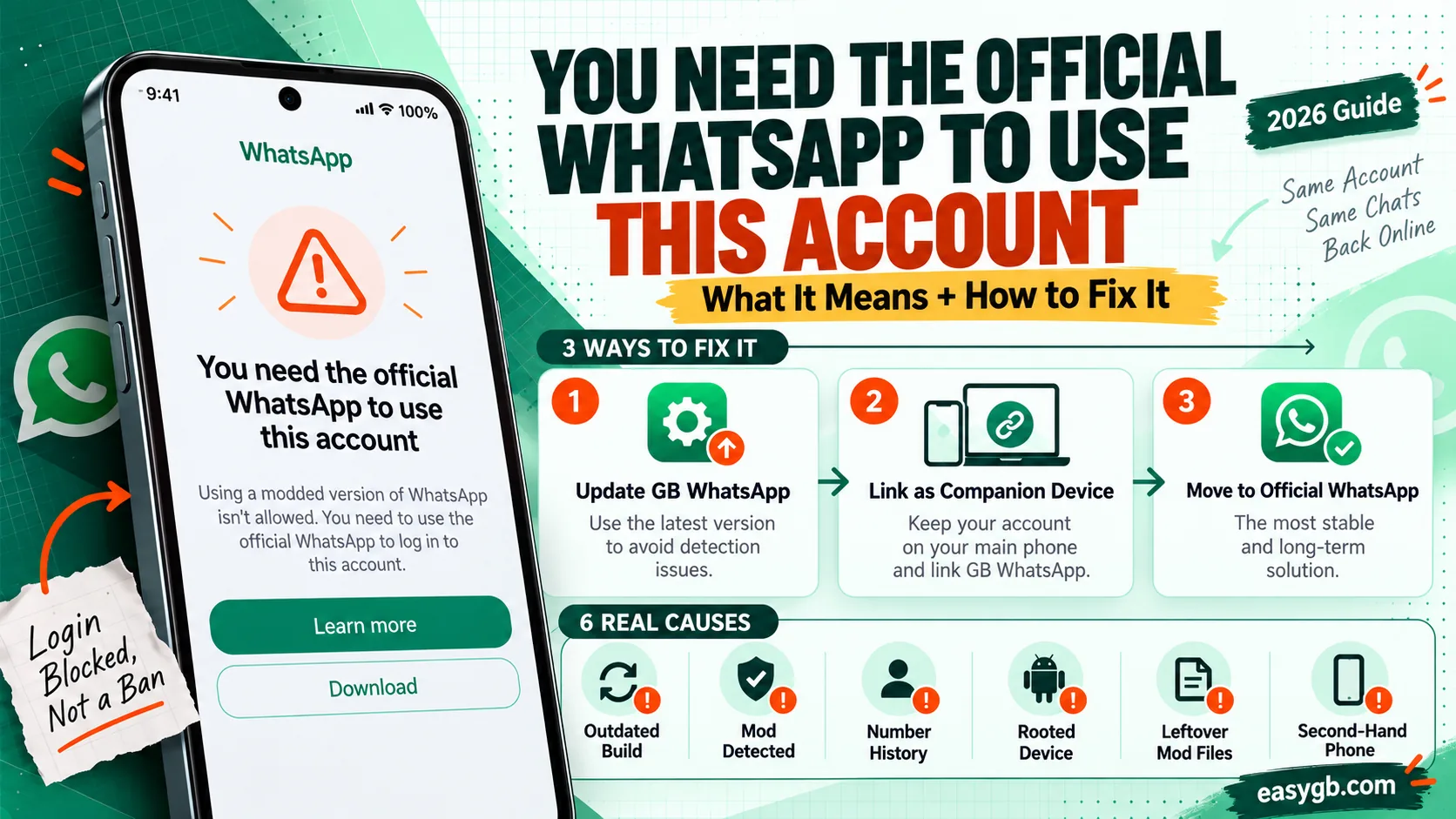
You need the official WhatsApp to use this account. Unofficial apps may put your privacy and security at risk.
What the Message Really Means
WhatsApp’s servers check which app is trying to log in. When they spot a modified client like GB WhatsApp, they refuse the login and show this screen.
So the message is a login block, not a penalty on your account. Your number, your chats on the server side, and your groups usually stay intact. WhatsApp simply will not let that app sign in.
It typically appears at one of three moments: right after you enter your number on a fresh install, after you update or reinstall GB WhatsApp, or suddenly while you are using an older build that WhatsApp has started to reject.
Here is the part most guides skip. The block targets the app plus your number combination. That is why the same number often logs in fine on official WhatsApp, and why switching to an updated build or a different login method usually solves it.
The message means WhatsApp refused GB WhatsApp, not your number. Back up your chats first, then pick one fix:
- Want to keep using GB WhatsApp? Update to v26.97, or log in to official WhatsApp and link GB WhatsApp to it as a companion device.
- Done with mods? Move your chats to official WhatsApp from the Play Store.
- Seeing it on the official app? Your phone is likely rooted, uncertified, or still holds mod leftovers. Fix the device, then reinstall.
On this page Tap to open
Is It a Ban? How to Tell These WhatsApp Messages Apart
People panic because several WhatsApp warnings look alike. However, each one means something different, and each one needs a different response. Match your screen to the table below.
| Message on screen | What it means | Can you still use the number? | What to do |
|---|---|---|---|
| You need the official WhatsApp to use this account | WhatsApp rejected the app you used to log in | Yes, on official WhatsApp or a supported login method | Follow the fixes on this page |
| Your account is temporarily banned (with a timer) | WhatsApp detected a modified app and paused the account | Only after the timer ends | Wait for the timer, then follow our ban recovery steps |
| This account is not allowed to use WhatsApp | A permanent ban for breaking the Terms of Service | No, unless a review reverses it | Request a review inside official WhatsApp |
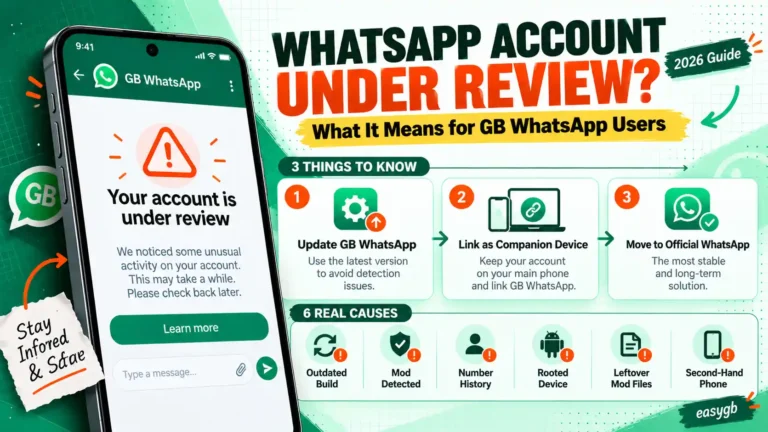
| Your account is under review | WhatsApp is checking activity, usually for up to 24 hours | Not during the review | Wait it out and avoid reinstalling |
Quick test: install official WhatsApp from the Play Store and enter your number. If it verifies and your chats restore, you have a login block, not a ban.
Why It Happens: The 6 Real Causes
Once you know the cause, the fix becomes obvious. Most people hit cause 1 or 2.
| Cause | How to recognize it | Best fix |
|---|---|---|
| 1. WhatsApp detected the mod | Appears on a fresh install or right after verification | Fix 1 or Fix 2 |
| 2. Your GB WhatsApp build is outdated | You run an older build; it worked until recently | Update to v26.97 (Fix 1) |
| 3. Your number has a history with mods | The block returns even after you reinstall GB WhatsApp | Fix 2, or move to official (Fix 3) |
| 4. Your phone fails Google’s integrity check | You see the error even on official WhatsApp; the phone is rooted or runs a custom ROM | Fix 4 |
| 5. Mod leftovers on the phone | An old GB, FM, or Plus app or folder still sits on the device | Uninstall all mods, then Fix 4 |
| 6. A second hand phone | The device came with a mod installed by a previous owner | Reset the phone, then reinstall |
Notice that the same message covers both app problems and device problems. That is exactly why a single “one trick fix” works for some people and fails for others.
Save Your Chats First (Two Minutes That Prevent Disaster)
Every fix below involves reinstalling or switching apps. So protect your messages before you start.
- If GB WhatsApp still opens, go to Settings, then Chats, then Chat Backup and tap Back Up.
- Open your file manager and copy the whole GBWhatsApp folder to a computer or cloud drive. On Android 11 and newer, it sits under Android, then media, then com.gbwhatsapp.
- Do not clear app data or uninstall until that copy finishes.
App will not open at all? Your last automatic backup still sits in that folder. Copy it now, before any reinstall replaces it.
Pick Your Fix Path
You do not need every fix. Instead, choose the card that matches your situation and jump straight to it.
Fix 1: Update to the Latest Build (v26.97)
WhatsApp keeps tightening its checks, and old mod builds fall behind. The current build, v26.97 by Abu Saleh (9aleh), released October 7, 2026, specifically fixed login and linking failures from v26.90.
- Back up and copy your GBWhatsApp folder, as shown above.
- Download GB WhatsApp v26.97 and check the file size, about 133 MB.
- Install it over your current build. If Android refuses, uninstall first; your backup folder stays on the phone.
- Open the app, verify your number, and tap Restore when it finds your backup.
Recent builds also offer a direct login by number option, which the developer added in v26.86 for users who struggle with linking. If the error appears again after updating, move on to Fix 2.
Running Android 5 or older? WhatsApp dropped Android 5.0 and 5.1 on September 8, 2026, so no build will log in reliably. Upgrade the phone or switch to a supported device.
Fix 2: Log In to Official WhatsApp, Then Link GB WhatsApp as a Companion
This is the most reliable method in 2026. Your account lives on official WhatsApp, which WhatsApp trusts. Then GB WhatsApp joins as a linked device, the same way WhatsApp Web or a second phone does.
What you need
- Official WhatsApp, verified with your number
- GB WhatsApp v26.97, freshly installed and not yet verified
- A way to show or scan a QR code: a second phone is easiest
Step by step
- Install official WhatsApp from the Play Store, verify your number, and restore your chats.
- Open GB WhatsApp. On the welcome screen, tap Agree and continue, but do not enter your number.
- Tap the three dot menu and choose Link as companion device. GB WhatsApp now shows a QR code.
- On official WhatsApp, open the menu, tap Linked devices, then Link a device.
- Scan the QR code. If both apps sit on the same phone, display the QR code on a second phone (a photo of the screen works) and scan that.
- Keep both apps open while your chats sync. Large accounts can take several minutes.
Limits you should know
| Point | What happens |
|---|---|
| Devices | WhatsApp allows up to four linked devices per account |
| Inactivity | If official WhatsApp stays offline for about 14 days, linked devices log out |
| Account control | Only the main phone can delete the account or change the number |
| Old history | Older messages may not fully sync to the companion |
| Ban risk | Lower than registering GB WhatsApp directly, but never zero |
Because your main account runs on the official app, a detection usually hits the linked session first. In that case, simply unlink it from Linked devices and your account keeps working.
Fix 3: Move to Official WhatsApp Without Losing Chats
If you are tired of blocks and bans, switching back is the permanent fix. You keep your chats as long as you move the backup into the folder official WhatsApp expects.
- Back up inside GB WhatsApp and copy the GBWhatsApp folder.
- Rename the folder to WhatsApp, and rename backup files that start with GBWhatsApp so they start with WhatsApp.
- On Android 11 and newer, move that folder to Android, then media, then com.whatsapp.
- Uninstall GB WhatsApp, install official WhatsApp from the Play Store, verify your number, and tap Restore.
If the restore fails, check that the folder and file names match exactly, then reinstall official WhatsApp and try again.
Fix 4: You See the Error on Official WhatsApp
This one confuses people the most. You already use the real app, yet WhatsApp still says you need it. In that case, WhatsApp does not trust your phone, so work through these checks in order.
- Remove every mod. Uninstall GB WhatsApp, GB WhatsApp Pro, FM WhatsApp, WhatsApp Plus, and any clone or dual app tool.
- Reinstall from an official source. Uninstall WhatsApp, then install it from the Google Play Store or whatsapp.com/android.
- Check Play Protect certification. Open the Play Store, tap your profile, then Settings, then About. It should say the device is certified.
- Rooted or custom ROM? Google replaced SafetyNet with the Play Integrity API, and old Magisk tricks often fail now. A stock firmware restore is the clean fix.
- Update the basics. Install pending Android updates and update Google Play services.
- Set automatic date and time. A wrong clock breaks verification.
- Test another phone. If your number works there, the problem sits in your device, not your account.
Bought a Second Hand Phone and Got This Error?
A previous owner may have installed a mod, and its files can linger in shared storage. Before anything else, check your apps list and file manager for GB, FM, Yo, or Plus folders.
If you find any, back up your own data and then do a factory reset from Settings, then System, then Reset. After the reset, install only official WhatsApp from the Play Store. This clears leftovers that no app level fix can reach.
How to Contact WhatsApp Support (and What to Write)
Contact support only once you use official WhatsApp and the error still appears. Open official WhatsApp, then go to Settings, then Help, then Contact us. Write in plain words and stay honest; support reviews the account history anyway.
Replies usually arrive by email. Meanwhile, avoid reinstalling again and again, because repeated verification attempts can add verification code wait timers.
Tricks That Do Not Work (or Make Things Worse)
Plenty of videos promise a one tap fix. Unfortunately, most of them waste time, and some put your phone at risk.
- Using a VPN or changing your IP: the check looks at the app and your number, not your location.
- Turning off Play Protect: it removes a safety layer and does not change what WhatsApp’s servers see.
- Rooting and spoofing integrity checks: it can break banking apps and often fails against Play Integrity.
- “Unban” or “fix” apps: these are scams that collect your number or push malware.
- Clearing data over and over: each new verification attempt can lengthen the code wait timer.
How to Stop the Error From Coming Back
- Keep your main number on official WhatsApp and use GB WhatsApp only with a secondary number.
- Update to every new build quickly, because WhatsApp rejects old ones first.
- Skip auto reply blasts, bulk sending, and mass forwarding, which raise detection risk.
- Turn on two step verification so nobody can hijack your number during a reinstall.
- Download only from a source you trust, and check the APK file size before installing.
Frequently Asked Questions
What does “You need the official WhatsApp to use this account” mean?
It means WhatsApp’s servers rejected the app you used to log in, usually a modified app like GB WhatsApp. It blocks that login rather than banning your number.
Is this error the same as a WhatsApp ban?
No. A ban shows a timer or says your account is not allowed to use WhatsApp. This message only blocks the unofficial app, so your number usually still works on official WhatsApp.
Will I lose my chats if I fix this error?
Not if you back up first. Copy the GBWhatsApp folder before you uninstall or switch apps, then restore it in the new app.
How long does the error last?
It has no fixed timer. It stays until you log in with an app or method WhatsApp accepts, such as an updated build, companion linking, or official WhatsApp.
Why does official WhatsApp show this error on my phone?
Your phone probably fails Google’s integrity check because it is rooted or runs a custom ROM, or old mod files remain. Remove all mods, reinstall from the Play Store, and check Play Protect certification.
Can I use GB WhatsApp after getting this error?
Often yes. Update to v26.97 or link GB WhatsApp as a companion device to official WhatsApp. Both carry some ban risk, so use a secondary number.
How do I link GB WhatsApp as a companion device?
Verify your number on official WhatsApp. Then open GB WhatsApp, choose Link as companion device from the menu, and scan its QR code from Linked devices in official WhatsApp.
Can I link GB WhatsApp on the same phone as official WhatsApp?
Yes, but scanning is tricky on one screen. Show the QR code on a second phone, or take a photo of it with another device, then scan that from official WhatsApp.
Does a VPN fix the official WhatsApp error?
No. WhatsApp checks the app and your number, not your IP address. A VPN only adds another variable.
Should I turn off Google Play Protect to fix it?
No. Play Protect runs on your phone, while the block comes from WhatsApp’s servers. Turning it off only removes protection.
Does this error appear on FM WhatsApp and WhatsApp Plus too?
Yes. WhatsApp applies the same check to every modified client, including FM WhatsApp, WhatsApp Plus, and YoWhatsApp.
I bought a used phone and see this error. What should I do?
A previous owner may have used a mod. Back up your data, factory reset the phone, and install only official WhatsApp from the Play Store.
Can WhatsApp support remove this error?
Support can review accounts that now use official WhatsApp. Contact them through Settings, Help, Contact us in the official app, and explain the situation honestly.
Does this error happen on iPhone?
Rarely, because GB WhatsApp does not exist for iPhone. iPhone users see it mainly after using tweaked apps like Watusi or a sideloaded build.
Sources and Further Reading
- WhatsApp Help Center: bans, unofficial apps, and linked devices
- Google Play Integrity API: the device check that replaced SafetyNet
- Make Tech Easier: companion mode limits and the 14 day rule