
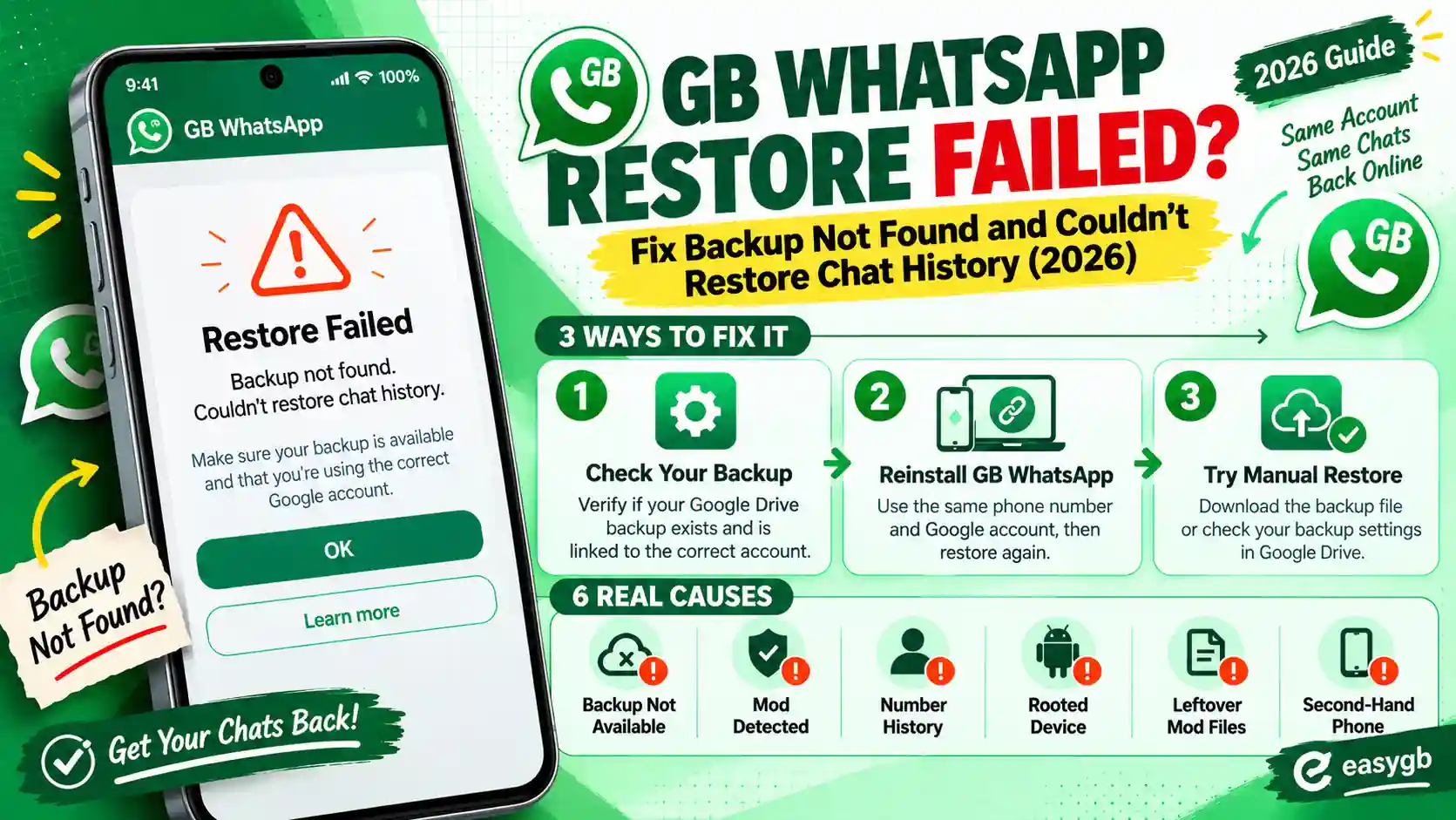
GB WhatsApp Restore Failed? Fix “Backup Not Found” and “Couldn’t Restore Chat History” (2026)
GB WhatsApp says no backup found, or “Couldn’t restore chat history” right when you need your chats back? Before you panic, make one rescue copy. Then use this guide to find your backup, read the error, and get every chat back with 11 tested fixes.
Restoring messages (64%)
Couldn’t restore chat historyYour chat history couldn’t be restored. Please try again.
Why a GB WhatsApp Restore Fails
A restore only works when four things line up: the backup sits in the folder GB WhatsApp can see, it carries the right name, you verify the same phone number that made it, and your build can read its format.
Break any one of those, and GB WhatsApp either shows no backup at all or stops partway with an error. The good news is that your chats are usually still safe inside the file.
Most restore failures come from where the file sits, not from damage. Since Android 11, each app may only look inside its own media folder. So a backup copied into the wrong place becomes invisible to GB WhatsApp, even though you can see it clearly in your file manager.
So instead of reinstalling over and over, follow the order below. First protect the file, then find it, then match your error to its fix.
Your chats are almost always still in the backup file. Work through this order:
- Copy the whole GBWhatsApp folder to a computer or another drive before you touch anything.
- Confirm the backup sits in Android, then media, then com.gbwhatsapp, then GBWhatsApp, then Databases.
- Make sure the newest file is named msgstore.db.crypt14 (or crypt15), and verify the same phone number that made it.
- Use the same or a newer GB WhatsApp build than the one that created the backup.
On this page Tap to open
Make a Rescue Copy Before You Try Anything
Every retry, reinstall, or new backup can overwrite the file that holds your chats. GB WhatsApp even creates a fresh, nearly empty backup on its next nightly run. So secure what you have right now.
- Open your file manager and go to Internal storage, then Android, then media, then com.gbwhatsapp.
- Copy the entire GBWhatsApp folder to a computer, a USB drive, or cloud storage.
- On older phones, also check Internal storage, then GBWhatsApp, the location used before Android 11.
- Do not open GB WhatsApp again until that copy finishes.
Already started a fresh setup? Turn off automatic backup in GB WhatsApp right away under Settings, then Chats, then Chat Backup, so it does not overwrite your older daily files tonight.
Where Is Your Backup? Pick Your Starting Point
The right fix depends on which app made your backup and where it lives. Choose the card that matches you.
Restore Error Decoder
Each restore problem looks a little different on screen. Find yours, and skip straight to the fix that works.
| What you see | What it means | Fix |
|---|---|---|
| No backup found, setup jumps to the profile screen | GB WhatsApp cannot see the file in its own folder | Fix 1 and Fix 2 |
| Couldn’t restore chat history | Wrong number, a newer backup format, or a damaged file | Fix 3, Fix 6, Fix 11 |
| Restore option never appeared | You tapped Skip, or permissions were denied | Fix 4 and Fix 5 |
| Asks for a backup password or 64 digit key | The backup uses end to end encryption | Fix 9 |
| Stuck at a percentage for a long time | Large media, low storage, or the screen locked | Fix 10 |
| Chats came back, photos did not | The Media folder was not copied or renamed | Fix 10 |
| Only old chats came back | An older daily backup was restored | Fix 2 |
Part 1: Restoring a GB WhatsApp BackupFixes 1 to 6 solve the most common restore failures.
Fix 1: Put the Backup in the Folder GB WhatsApp Can See
On Android 11 and newer, scoped storage limits each app to its own media folder. GB WhatsApp uses the package com.gbwhatsapp, so it only looks there. A backup left in the old root folder, or in official WhatsApp’s folder, simply does not exist as far as GB WhatsApp is concerned.
- Uninstall GB WhatsApp, keeping your rescue copy safe.
- Install GB WhatsApp, but do not verify your number yet. If the com.gbwhatsapp folder does not exist, create it yourself.
- Copy your GBWhatsApp folder into Android, then media, then com.gbwhatsapp.
- Open GB WhatsApp, allow storage access, verify your number, and tap Restore.
Cannot open the Android folder? Some built in file managers hide it. Use the Files by Google app, or connect the phone to a computer by USB and copy the folder there.
Fix 2: Give the Backup the Name GB WhatsApp Expects
Inside the Databases folder, GB WhatsApp keeps one current backup plus several dated daily copies. During setup, it offers the file named exactly msgstore.db.crypt14, or msgstore.db.crypt15 if the backup is end to end encrypted.
| File | What it is |
|---|---|
| msgstore.db.crypt14 | The current backup, which GB WhatsApp restores by default |
| msgstore with a date in its name | Older daily copies, kept for about a week |
| msgstore.db.crypt15 | An end to end encrypted backup that needs your password or key |
| wa.db or other files | Contact data; leave them where they are |
If only dated files exist, or if you want an older day, rename that dated file to msgstore.db.crypt14, keeping the same ending number. First rename any existing current file so you keep it. Then reinstall and restore.
Fix 3: Verify the Same Phone Number
WhatsApp encrypts every backup with a key tied to the account that created it. So a backup made on one number will not open on another, and you get “Couldn’t restore chat history” even though the file is perfect.
- Verify the exact number, with the same country code, that you used when the backup was made.
- If you changed numbers, verify the old number first, restore, and then use the Change Number feature inside the app.
- Lost the old SIM? Ask your carrier for a replacement SIM on the same number; that is the only route for that backup.
Fix 4: You Tapped Skip, or the Restore Never Appeared
GB WhatsApp only offers a restore once, right after verification. If you tapped Skip, or if the app could not read storage at that moment, the offer disappears for good on that install.
- Make sure your rescue copy is safe, then uninstall GB WhatsApp.
- Put the backup back in the correct folder, as shown in Fix 1.
- Install again, and allow every storage or media permission the app requests.
- Verify your number and wait for the backup screen before tapping anything.
Fix 5: Allow Storage Access and Free Up Space
A restore unpacks your messages and then pulls in media, so it needs both permission and room to work.
- Open App info for GB WhatsApp, then Permissions, and allow Files and media, or Photos and videos on Android 13 and newer.
- Keep free space of at least twice the size of your backup folder, and never less than 2 GB.
- Charge above 50 percent and stay on WiFi, since large restores take a while.
- Turn off battery saver during the restore so Android does not pause it.
Fix 6: Your Build Is Older Than Your Backup
WhatsApp changes its database format over time. As a result, a backup made on a newer build often refuses to open on an older one, and the restore fails with no clear reason.
The fix is simple: install the same build that created the backup, or a newer one. For almost everyone, that means GB WhatsApp v26.97, the current release. If you deliberately rolled back to an older build, restore on the new build first, then follow our steps to downgrade GB WhatsApp safely.
Part 2: Backups From Other Apps and AccountsFixes 7 to 9 cover official WhatsApp, Google Drive, and encrypted backups.
Fix 7: Restore an Official WhatsApp Backup in GB WhatsApp
Moving from the official app works well, as long as you move the local backup into GB WhatsApp’s folder and rename it.
- In official WhatsApp, go to Settings, then Chats, then Chat backup and tap Back up. This writes a fresh local copy too.
- Open Android, then media, then com.whatsapp and copy the WhatsApp folder.
- Paste it into Android, then media, then com.gbwhatsapp and rename it to GBWhatsApp.
- Inside it, rename media folders that start with WhatsApp so they start with GBWhatsApp, such as GBWhatsApp Images.
- Uninstall official WhatsApp, install GB WhatsApp, verify the same number, and tap Restore.
Want to go the other way later? Our safety guide explains how to move back to official WhatsApp with every chat.
Fix 8: Your Chats Are in Google Drive
GB WhatsApp cannot restore a Google Drive backup. Google ties that backup to the official app, so a modified app has no access to it. However, you can still get those chats with a short detour.
- Install official WhatsApp, verify your number, and restore from Google Drive as normal.
- Once your chats appear, make a local backup in official WhatsApp from Settings, then Chats, then Chat backup.
- If end to end encrypted backup is on, either turn it off before that backup or keep your password ready for Fix 9.
- Follow Fix 7 to move that local backup into GB WhatsApp.
Watch out: even if your GB WhatsApp build shows a Google Drive option, do not rely on it. Always keep your own copy of the GBWhatsApp folder somewhere else.
Fix 9: It Asks for a Backup Password or 64 Digit Key
If you turned on end to end encrypted backups, nobody can open that backup without your password or the 64 digit key you saved. That includes WhatsApp itself.
- Enter the password exactly, paying attention to capital letters and spaces.
- Try the 64 digit key if you chose that option instead of a password.
- Stop after a few wrong attempts, because too many failures can lock the key permanently.
- If both are lost, that encrypted backup cannot be recovered; check whether an older, unencrypted daily file exists in Databases.
Part 3: Partial or Stuck RestoresFixes 10 and 11 cover slow, incomplete, and damaged restores.
Fix 10: Restore Stuck, Slow, or Media Missing
Messages restore first, then media. Big accounts can take a long time, so a slow restore is not always a broken one.
| Problem | Fix |
|---|---|
| Stuck at one percentage for over 30 minutes | Keep the screen on, plug in the charger, and wait; if nothing moves for an hour, restart and restore again |
| Chats back, photos and videos missing | Copy the Media folder into GBWhatsApp too, with folder names that start with GBWhatsApp |
| Voice notes play, images show blank | Allow Photos and videos permission, then reopen the chat |
| Recent days missing | You restored an older daily file; see Fix 2 to choose the newest one |
Fix 11: The Backup File Is Damaged
A backup can break if the phone ran out of space or switched off while writing it. The newest file then fails, while older daily copies stay healthy.
- Open the Databases folder in your rescue copy and sort files by date.
- Check the file sizes. A file far smaller than the others is likely damaged.
- Rename the newest healthy looking dated file to msgstore.db.crypt14, as in Fix 2.
- Reinstall and restore. You lose only the days after that copy.
Restore Tricks to Avoid
Desperate moments attract bad advice and paid tools. Skip these.
- Paid “WhatsApp recovery” software: it cannot decrypt a backup without the account key, and some versions harvest your data.
- Online “crypt14 decrypt” websites: uploading your backup hands your private chats to strangers.
- Reinstalling again and again without a rescue copy: each new setup can overwrite older daily files.
- Verifying a different number to test: it changes nothing for the old backup and can trigger wait timers.
- Factory resetting: it wipes the very files you are trying to restore.
A Backup Routine That Never Fails You
- Set GB WhatsApp to back up daily under Settings, then Chats, then Chat Backup.
- Copy the whole GBWhatsApp folder to a computer or cloud drive once a week.
- Back up manually right before every update, reinstall, or phone change.
- Write down your end to end backup password or key and store it safely.
- Keep using the same number, and update to new builds instead of rolling back.
Frequently Asked Questions
Why is my GB WhatsApp not restoring the backup?
Usually the backup sits in the wrong folder, has the wrong name, or belongs to a different number. Put it in Android, media, com.gbwhatsapp, GBWhatsApp, Databases and verify the same number.
Where is the GB WhatsApp backup folder on Android 11 and newer?
It sits in Internal storage, Android, media, com.gbwhatsapp, GBWhatsApp, Databases. Older phones used Internal storage, GBWhatsApp.
What does couldn’t restore chat history mean?
GB WhatsApp found the backup but could not open it. A different phone number, a newer backup format, or a damaged file usually causes it.
Can GB WhatsApp restore a Google Drive backup?
No. Restore the Drive backup in official WhatsApp first, make a local backup there, and then move that local backup into GB WhatsApp.
Can I restore GB WhatsApp chats on a different number?
No. The backup is encrypted with a key tied to the original number, so verify that number to restore it.
How do I restore an official WhatsApp backup in GB WhatsApp?
Copy the WhatsApp folder from com.whatsapp into com.gbwhatsapp, rename it to GBWhatsApp, then install GB WhatsApp and restore with the same number.
How do I restore an older GB WhatsApp backup?
Rename the dated file you want to msgstore.db.crypt14 in the Databases folder, keeping a copy of the current file, then reinstall and restore.
I tapped Skip on the restore screen. Can I still restore?
Yes. Keep a copy of your backup folder, uninstall and reinstall GB WhatsApp, and choose Restore when the screen appears again.
Why did my chats restore but not my photos?
The Media folder was not copied, or its folder names still start with WhatsApp. Copy it into GBWhatsApp and rename the folders.
Why does GB WhatsApp restore fail after downgrading?
Older builds often cannot read backups made by newer builds. Restore on the newest build instead.
What if I forgot my end to end backup password?
Without the password or 64 digit key, that encrypted backup cannot be opened. Check for an older unencrypted daily file instead.
How long does a GB WhatsApp restore take?
Small backups take a minute or two. Large ones with lots of media can take much longer, so keep the phone charging on WiFi.
Do recovery apps restore GB WhatsApp chats?
Not reliably. They cannot decrypt backups without the account key, and many collect your data.
How do I stop losing GB WhatsApp chats in future?
Back up daily, copy the GBWhatsApp folder to another device weekly, and back up again before every update or phone change.
Sources and Further Reading
- WhatsApp Help Center: backups, restores, and end to end encrypted backups
- Android Developers: scoped storage changes in Android 11
- Dedoimedo: restoring a local WhatsApp backup on Android 11
- Tom’s Guide: how encrypted backups, passwords, and 64 digit keys work
2 Comments