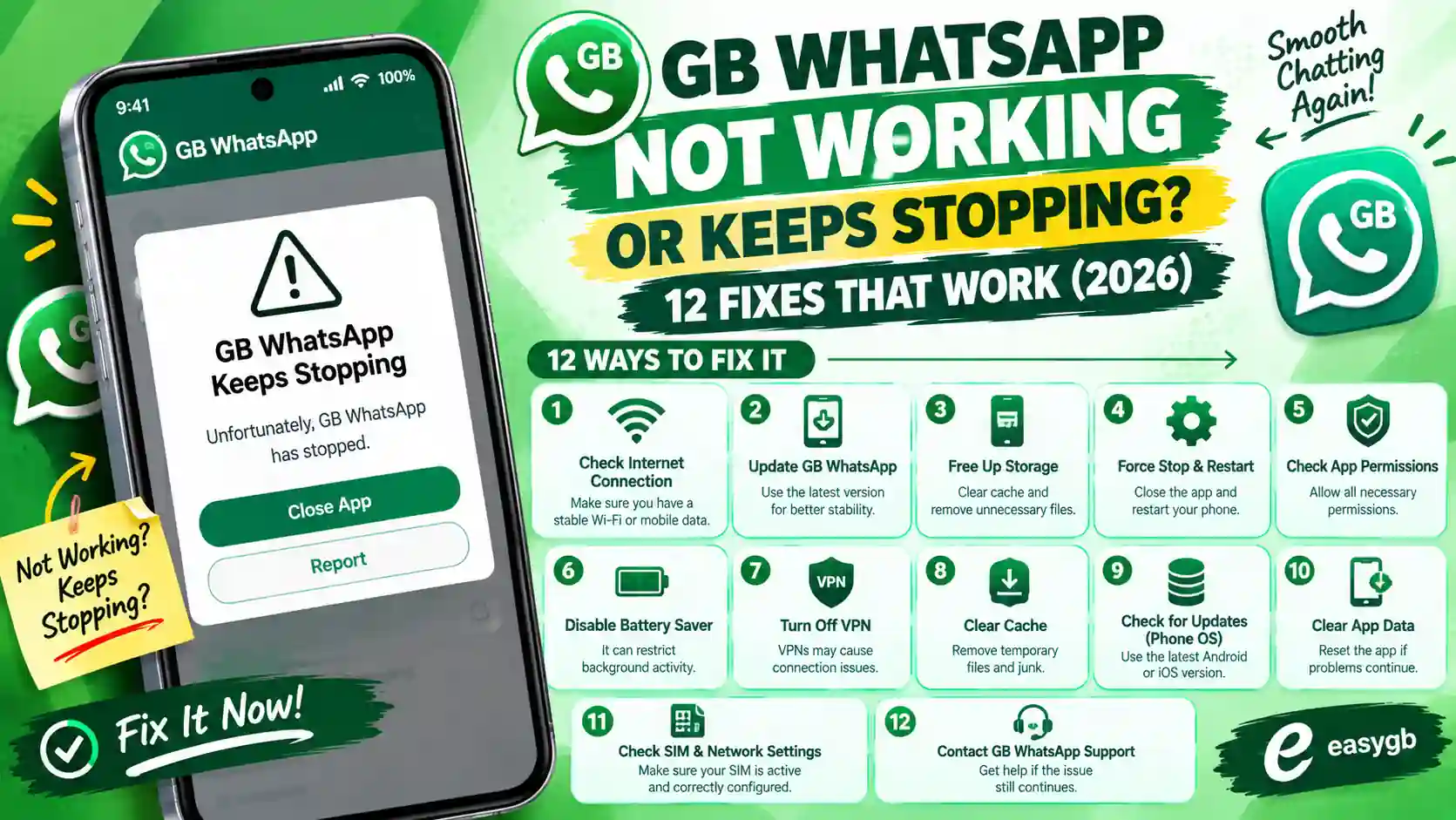
GB WhatsApp Not Working or Keeps Stopping? 12 Fixes That Work (2026)
GB WhatsApp keeps stopping, refuses to open, or will not even install? This guide decodes every error message, shows you exactly where the app fails, and walks you through 12 fixes without losing a single chat.
GB WhatsApp keeps stopping
App infoClose appWhat “Keeps Stopping” Really Means
Android shows this box when an app crashes and closes itself. In other words, GB WhatsApp hit something it could not handle, and Android shut it down to protect the phone.
The crash is a symptom, not the cause. The real trigger usually sits in one of four places: the APK file, your Android system, the app’s own data, or WhatsApp’s servers.
Here is the reassuring part. Across the user reports we track, most crashes trace back to an old build, a damaged cache, a full phone, or an outdated Android component. All four take minutes to fix, and none of them touch your chats.
So instead of reinstalling blindly, first figure out when the app fails. That single detail cuts the fix list from twelve to two or three.
Most GB WhatsApp crashes come from an old build or a damaged cache. Try this order:
- Force stop GB WhatsApp and clear its cache, never its data.
- Update Android System WebView and Google Play services from the Play Store.
- Install the current build, GB WhatsApp v26.97, over your old one.
- Will not install? Read the exact error, match it in the decoder table below, and use that fix.
On this page Tap to open
Find Where It Fails: Install, Open, or Use
Every GB WhatsApp failure happens at one of three moments. Pick yours, and you only need that part of the guide.
Error Message Decoder
Android and GB WhatsApp rarely explain themselves well. However, the exact wording tells you a lot. Find your message below.
| Message | What it means | Fix |
|---|---|---|
| GB WhatsApp keeps stopping | The app crashed on launch or during use | Fix 6, then Fix 7 |
| App not installed | A build with the same package name but a different signature is already on the phone | Fix 1 |
| There was a problem parsing the package | The APK is damaged, incomplete, or needs a newer Android | Fix 2 |
| App not installed as package appears to be invalid | Same as a parsing error, usually a broken download | Fix 2 |
| Blocked by Play Protect | Google flagged the APK as unknown or risky | Fix 3 |
| App from an unverified developer | Android developer verification blocks the install in your country | Fix 4 |
| This app was built for an older version of Android | Android 14 or newer rejects very old builds | Fix 5 |
| This version has expired | Your build passed its expiry date | Fix 8 |
| An unexpected error occurred | Damaged app data or an outdated build | Fix 6, then Fix 8 |
| Your phone date is inaccurate | The clock is wrong, so secure connections fail | Fix 10 |
Seeing “You need the official WhatsApp to use this account” instead? That is a login block, not a crash, so the fixes below will not help. The same goes for a verification code that never arrives.
Protect Your Chats First
Several fixes below involve reinstalling. Your messages live in a local backup, so secure it now.
- If the app still opens even briefly, go to Settings, then Chats, then Chat Backup and tap Back Up.
- Open a file manager and copy the GBWhatsApp folder to a computer or cloud drive. On Android 11 and newer, find it under Android, then media, then com.gbwhatsapp.
- Never tap Clear data or Clear storage until that copy finishes.
Cache versus data: clearing cache deletes temporary files and is safe. Clearing data wipes the app back to day one, so it signs you out and removes anything not backed up.
Stage 1: It Will Not InstallFixes 1 to 5 cover every installer error.
Fix 1: “App Not Installed”
Android identifies every app by its package name and its signing key. GB WhatsApp uses the package com.gbwhatsapp. So when a build from a different developer already sits on your phone under that name, the keys do not match, and Android refuses the new one.
- Back up your chats and copy the GBWhatsApp folder, as shown above.
- Open Settings, then Apps, find the existing GB WhatsApp, and uninstall it. Your backup folder stays on the phone.
- Install the new APK again. It should now go through.
- Open it, verify your number, and tap Restore.
Two more causes trigger the same message. First, you may be trying to install an older version over a newer one; Android blocks that downgrade. Second, a work profile or a second user account may still hold a copy, so check those as well.
Good to know: GB WhatsApp Pro uses a different package name, so it installs next to standard GB WhatsApp without a conflict.
Fix 2: Parsing Error or “Package Appears to Be Invalid”
Android cannot read the file. Usually the download broke halfway, or the file is not really an APK at all.
- Compare the file size. The genuine v26.97 APK weighs about 133 MB; a file of a few hundred KB or a few MB is broken or fake.
- Delete the file and download it again over a stable connection.
- Check that the name ends in .apk, not .apk.zip or .bin.
- Confirm your phone runs Android 6.0 or newer, since WhatsApp no longer supports anything older.
Fix 3: Blocked by Play Protect
Google Play Protect scans every app you sideload. Because GB WhatsApp is unofficial, Play Protect often flags it as unknown or potentially harmful.
When the warning appears, tap More details, then Install anyway if you trust the source. Not sure? Run our APK download safety check first. Play Protect may also disable the app later and suggest removing it.
Do not switch Play Protect off for good. It guards the rest of your phone against real malware. If you pause it to install, turn it back on right after.
Fix 4: “App From an Unverified Developer”
This is the biggest install change of 2026. Since September 30, 2026, certified Android phones in Brazil, Indonesia, Singapore, and Thailand block apps from developers who have not verified their identity with Google. Google plans to expand this to every country in 2027.
GB WhatsApp comes from an anonymous modder, so it does not pass verification. As a result, users in those four countries now see the install blocked by default.
Google built an advanced flow for experienced users who accept the risk. It works like this:
- Turn on Developer options, then open Apps from unverified developers.
- Switch on Allow apps from unverified developers and confirm with your screen lock.
- Confirm that nobody is pressuring you, then restart the phone.
- Wait 24 hours. Google adds this delay on purpose to stop scammers who rush victims.
- Return to the setting and allow these apps for seven days or indefinitely, then install.
Remember that the same rule applies to updates. If you later switch the flow off, GB WhatsApp updates fail until you turn it back on. Outside those four countries, nothing changes yet.
Fix 5: “Built for an Older Version of Android”
Newer Android versions refuse apps built for very old systems. Android 14 blocks apps targeting Android 5 or lower, and Android 15 and 16 also block apps targeting Android 6. The installer may show INSTALL_FAILED_DEPRECATED_SDK_VERSION.
This mostly hits people who install an old GB WhatsApp version on a new phone. The fix is simple: use a current build instead. Our GB WhatsApp old versions archive marks which builds still install.
Stage 2: It Will Not OpenFixes 6 to 10 cover launch crashes and expired builds.
Fix 6: Force Stop and Clear the Cache
Damaged temporary files cause more launch crashes than anything else. Clearing them is safe and takes seconds.
- Long press the GB WhatsApp icon and tap App info.
- Tap Force stop and confirm.
- Open Storage and cache, then tap Clear cache. Do not tap Clear storage.
- Restart your phone, then open GB WhatsApp again.
Still crashing? Remove cleaner, booster, battery saver, and app clone tools. They often kill or block mods in the background, so uninstall them and test again.
Fix 7: Update Android System WebView and Google Play Services
GB WhatsApp leans on two hidden system components: Android System WebView, which renders links and some screens, and Google Play services, which handles maps, notifications, and backups.
When either one is outdated or buggy, many apps crash at once. This is not theory. In March 2021, a faulty WebView update crashed Gmail and countless other apps worldwide until Google pushed a fix.
- Open the Play Store and search for Android System WebView. Tap Update if it appears.
- Do the same for Google Chrome, since many phones share its engine.
- Open Settings, then Apps, then Google Play services and check for updates.
- If crashes began right after a WebView update, open its page, tap Uninstall updates, and test again.
Fix 8: Your Build Expired or Fell Too Far Behind
Every WhatsApp client has a limited life. Once WhatsApp updates its servers far enough, old builds either show an expired screen, freeze on launch, or crash with an unexpected error.
- Back up your chats and copy the GBWhatsApp folder.
- Download GB WhatsApp v26.97, released on October 7, 2026, and check the size of about 133 MB.
- Install it directly over your current build so your data carries over.
- Open it and keep using it; no new verification is usually needed for an update.
Do not change the phone date to trick an expired build. It breaks secure connections and causes the date error in Fix 10. Updating is the only clean fix.
Fix 9: Free Up Storage and Memory
GB WhatsApp writes its database every time it opens. With storage nearly full, that write fails and the app crashes instantly.
- Keep at least 2 GB of free space; open Settings, then Storage to check.
- Inside GB WhatsApp, if it opens, use Settings, then Storage and data, then Manage storage to delete large videos.
- Close heavy apps and games running in the background.
- On phones with 2 GB of RAM or less, avoid running GB WhatsApp and official WhatsApp at the same time.
Fix 10: Fix Your Date and Time
A wrong clock makes secure connections fail, so GB WhatsApp either crashes or shows a date error. Open Settings, then System, then Date and time and turn on Set time automatically and Set time zone automatically. Then restart the app.
Stage 3: It Crashes While You Use ItFixes 11 and 12 cover crashes inside the app.
Fix 11: It Crashes in One Chat or on One Screen
When the app runs fine until you open a certain chat, start a call, or change a setting, the trigger is specific. Match yours below.
| When it crashes | Likely cause | Fix |
|---|---|---|
| Opening one chat | A damaged video, sticker, or voice note | Open that chat from the chat list menu and delete its largest media, or clear the chat after exporting it |
| Right after a restore | A damaged backup file | Reinstall and restore an older backup file instead of the newest |
| After applying a theme | A broken custom theme or font | Switch back to the default theme in the GB settings menu |
| During voice or video calls | Missing microphone, camera, or phone permission | Allow those permissions under App info, then Permissions |
| When sending files | Storage permission or full storage | Allow Files and media, then free up space |
To restore an older backup, open the Databases folder inside GBWhatsApp. Rename the newest msgstore.db.crypt14 file (crypt15 on some builds) to keep it safe. Then give a dated file, such as the one with yesterday’s date, that same newest name before you reinstall.
Fix 12: Do a Clean Reinstall the Right Way
When nothing else works, a clean reinstall clears every hidden setting. Done carefully, it keeps all your chats.
- Back up inside the app if it opens, then copy the whole GBWhatsApp folder to another device.
- Uninstall GB WhatsApp and restart the phone.
- Delete any leftover GB, FM, or Plus mods so nothing conflicts.
- Install a fresh v26.97 APK and allow storage and contacts permissions.
- Verify your number and tap Restore when the app finds your backup.
When the Problem Is Not Your Phone
Sometimes thousands of users hit the same crash on the same day. That usually means WhatsApp changed something on its servers, and every older GB build started failing at once.
- Ask a friend who also uses GB WhatsApp whether theirs works.
- Check a status site such as Downdetector for a wider WhatsApp outage.
- Watch for a new build; the developer typically ships a fix within days of a server change.
In that situation, no phone setting helps, so avoid wiping anything. Instead, keep your backup safe and update the moment the fixed build arrives.
Fixes to Avoid
Panic leads people into fixes that cause new problems. Skip these.
- “Crash fixer” or “booster” apps: they do nothing useful and often carry adware.
- Tapping Clear data first: it wipes unsaved chats when a cache clear would have worked.
- Patched builds from random Telegram groups: a modified APK of a modified app doubles the malware risk.
- Rooting the phone to force an install: it breaks banking apps and can trigger WhatsApp’s device checks.
- Factory resetting straight away: it is a last resort, not a first step, and it deletes everything without a backup.
How to Keep GB WhatsApp Stable
- Update to each new build within a few days of release.
- Install updates directly over the old build instead of uninstalling first.
- Keep WebView, Chrome, and Google Play services up to date.
- Leave at least 2 GB of free storage at all times.
- Run one mod at a time, and remove old GB, FM, or Plus copies.
- Back up daily and copy the GBWhatsApp folder somewhere safe each week.
Frequently Asked Questions
Why does GB WhatsApp keep stopping?
Usually because of an outdated build, a damaged cache, full storage, or an outdated Android System WebView. Clear the cache, update WebView, and install v26.97 to fix most cases.
Why is GB WhatsApp not opening on my phone?
An expired build or damaged app files are the most common causes. Force stop the app, clear its cache, and update to the latest build.
Why does my phone say App not installed for GB WhatsApp?
A GB WhatsApp build from another developer already uses the same package name. Back up, uninstall the old build, and install the new one.
What does there was a problem parsing the package mean?
The APK file is broken, incomplete, or not compatible with your Android version. Download it again and check that it is about 133 MB.
Will clearing cache delete my GB WhatsApp chats?
No. Clearing cache only removes temporary files. Clearing data or storage is what deletes chats, so avoid that without a backup.
Why can’t I install GB WhatsApp in Brazil, Indonesia, Singapore, or Thailand?
Since September 30, 2026, Android blocks apps from unverified developers in those countries. Experienced users can enable the advanced flow, which includes a 24 hour wait.
Is it safe to turn off Play Protect to install GB WhatsApp?
Only briefly, and only for a file you trust. Play Protect protects your whole phone, so switch it back on right after installing.
Why does GB WhatsApp crash after an update?
The new build may conflict with leftover data or an outdated WebView. Clear the cache, update WebView and Play services, and restart the phone.
Can an old GB WhatsApp version work on Android 15 or 16?
Very old builds will not even install there, because Android 15 and 16 block apps built for Android 6 and older. Use a current build instead.
Why does GB WhatsApp crash when I open one chat?
A damaged media file in that chat is the usual trigger. Delete the chat’s largest videos or stickers, or export and clear the chat.
Does Android System WebView affect GB WhatsApp?
Yes. GB WhatsApp uses WebView for links and some screens, so a buggy or outdated WebView can make it crash.
How do I fix an unexpected error occurred in GB WhatsApp?
Clear the app cache, update to v26.97, and restart your phone. If it persists, do a clean reinstall after backing up.
Why did GB WhatsApp stop working for everyone at once?
WhatsApp probably changed something on its servers. Wait for the developer to release a fixed build and keep your backup safe.
Should I factory reset my phone if GB WhatsApp keeps crashing?
No, not first. Try every app level fix, then a clean reinstall. A factory reset is a last resort and erases everything without a backup.
Sources and Further Reading
- Android Developers Blog: developer verification and the September 30, 2026 rollout
- Android Authority: how the advanced flow and its 24 hour wait work
- Bayton: minimum target SDK that each Android version installs
- Android Authority: the 2021 WebView update that crashed apps worldwide
- Google Play Help: how Play Protect scans sideloaded apps
2 Comments