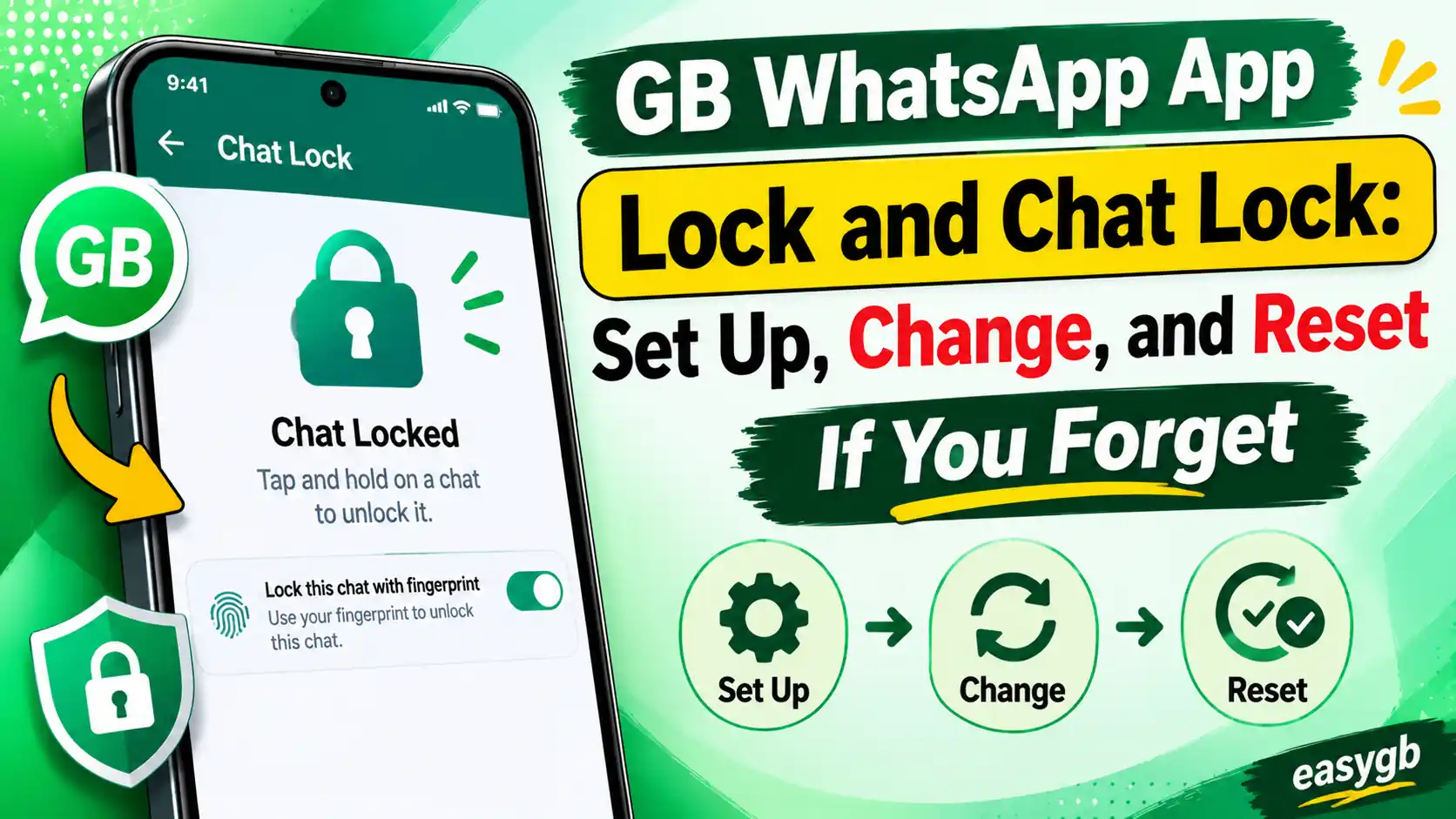
GB WhatsApp App Lock and Chat Lock:SetUp, Change, and Reset If You Forget
You hand your phone to someone for a second and your heart immediately races. All your private conversations are sitting right there, completely open. That feeling is exactly why GB WhatsApp built two separate lock systems directly into the app: App Lock and Chat Lock. This guide walks you through both features from scratch, shows you how to change your credentials when needed, and gives you every real solution when you forget your password or PIN.
App Lock vs Chat Lock: What Is the Difference and Which One Do You Need?
GB WhatsApp gives you two independent privacy layers, and understanding both is the first step to using them well. They work at completely different levels, and you can run them together at the same time for double protection.
| Feature | App Lock | Chat Lock |
|---|---|---|
| What it protects | The entire GB WhatsApp app | Only the specific chats you choose |
| Where to find it | GB Settings > Privacy > App Lock | Long-press any chat > Lock Chat |
| Who it blocks | Anyone who tries to open GB WhatsApp | Anyone who already has the app open |
| Can groups be locked | All groups locked by default (whole app) | Yes, select specific groups to lock |
| Locked folder shown | No separate folder, whole app locks | Yes, a Locked Chats folder is created |
| Can be hidden from view | Not applicable | Yes, using the Hide Locked Chats option |
| Works together with the other | Yes, both can run simultaneously | Yes, both can run simultaneously |
Think of App Lock as the front door of your house. Nobody gets inside without unlocking it first. Chat Lock is a safe inside the house. Even if someone gets through the front door, they still cannot open that safe without the right credentials.
Use both locks together for the strongest protection. Enable App Lock so the whole app requires authentication, and then add Chat Lock to your most sensitive conversations so they stay private even if someone else uses your phone while it is already open.
Not sure which version of GB WhatsApp you have? Make sure you are running the latest build first. You can download the latest GB WhatsApp APK from EasyGB to get access to all the current privacy features described in this guide.
The 4 Lock Authentication Methods in GB WhatsApp
GB WhatsApp supports four ways to authenticate your lock. Each one has its own strengths. Pick the one that fits how you use your phone every day.
Fingerprint and Face Unlock rely entirely on your Android device settings. If your sensor is not registered or your device does not support biometrics, GB WhatsApp automatically falls back to PIN or pattern authentication. Always set a backup PIN when you enable biometric lock.
Avoid using obvious PINs like 1234, 0000, or your date of birth. These are the first combinations anyone tries. A strong PIN uses non-sequential digits. A strong pattern avoids simple shapes like L, Z, or a straight line across all dots.
How to Set Up App Lock in GB WhatsApp: Step-by-Step
Setting up App Lock takes under two minutes. Follow these steps in order and do not skip the confirmation test at the end. That test tells you the lock is actually working before you rely on it.
Enable App Lock with PIN
- Open GB WhatsApp on your Android phone.
- Tap the three-dot menu at the top right corner of the screen.
- Select GB Settings from the dropdown list.
- Tap Privacy (sometimes labeled Privacy and Security).
- Scroll down and tap App Lock.
- Toggle App Lock on. A setup screen appears.
- Select PIN as your authentication method.
- Enter your chosen PIN (4 to 6 digits). Tap Next.
- Enter the same PIN again to confirm. Tap Confirm.
- Close GB WhatsApp completely by pressing the back button or swiping it away from recent apps. Reopen it. The app asks for your PIN. Enter it. If it unlocks, your App Lock is fully active.
Enable App Lock with Pattern
- Follow steps 1 through 6 above to reach the App Lock setup screen.
- Select Pattern as your authentication method.
- Draw your pattern on the dot grid by connecting at least four dots. Lift your finger.
- Draw the same pattern again to confirm.
- Tap Confirm. Close and reopen the app to test.
Enable App Lock with Fingerprint
- Make sure at least one fingerprint is registered in your phone’s Android Settings > Security > Fingerprint before starting.
- Go to GB Settings > Privacy > App Lock in GB WhatsApp.
- Toggle App Lock on.
- Select Fingerprint as your authentication method.
- Place your registered finger on the sensor when prompted. The app confirms recognition.
- Set a backup PIN when asked. This PIN is used if the fingerprint sensor fails or cannot read your finger. Do not skip this step.
- Close and reopen the app to confirm the fingerprint lock activates correctly.
While you are inside the Privacy settings, look for a Recovery Email option and enter a valid email address. This one step saves you from a painful reset process if you ever forget your PIN. Many users skip it and regret it. Take 30 seconds and add it now.
How to Set Up Chat Lock in GB WhatsApp
Chat Lock works at the conversation level. You pick exactly which chats get the extra security treatment, and everyone else stays in your normal list. Here is how to lock both individual contacts and group chats.
Lock an Individual Contact Chat
- Open GB WhatsApp and go to your main chat list.
- Long-press the conversation you want to lock. Hold until the options bar appears at the top.
- Tap the three-dot menu (vertical dots) that appears in the action bar.
- Select Lock Chat or Lock Conversation (the label varies slightly by GB WhatsApp version).
- Authenticate with your fingerprint or PIN when the prompt appears.
- Tap Continue to confirm. The chat immediately disappears from your main list and moves to the Locked Chats folder.
Lock a Group Chat
- Go to your main chat list in GB WhatsApp.
- Long-press the group conversation you want to lock.
- Tap the three-dot menu in the action bar.
- Select Lock Chat.
- Authenticate and confirm. The group moves to your Locked Chats folder.
How to Access Your Locked Chats
- Open GB WhatsApp and look at the top of your chat list for the Locked Chats folder.
- If the folder is not visible, slowly pull down from the top of the chat list to reveal it.
- Tap Locked Chats. GB WhatsApp asks for your fingerprint or PIN.
- Authenticate and the folder opens, showing all your locked conversations.
How to Unlock (Remove Lock from) a Chat
- Open the Locked Chats folder and authenticate.
- Tap to open the specific conversation you want to unlock.
- Tap the contact or group name at the top of the screen to open chat info.
- Scroll down and tap Chat Lock.
- Toggle the lock off. The chat returns to your main list immediately.
Once a chat is locked, notifications from that conversation will not show the sender name or message preview. You will only see a generic “New message” notification. This is a privacy feature, not a bug. If you need to monitor an important chat closely, keep it unlocked or check the Locked Chats folder regularly.
If you want to know more about what GB WhatsApp offers beyond basic security, check out our detailed comparison of GB WhatsApp vs official WhatsApp to see the full picture of what makes the modified version different.
How to Change Your GB WhatsApp App Lock PIN, Pattern, or Fingerprint
GB WhatsApp does not have a direct “change PIN” button the way some apps do. The process works by disabling the existing lock and re-enabling it with a new credential. It sounds like extra steps, but it takes less than a minute in practice.
Steps to Change Your App Lock Credential
- Open GB WhatsApp and tap the three-dot menu.
- Go to GB Settings > Privacy > App Lock.
- Authenticate with your current PIN, pattern, or fingerprint to access the settings.
- Toggle App Lock off. The lock is now disabled.
- Immediately toggle App Lock back on. The setup screen appears again.
- Choose your authentication method. If you are switching from PIN to fingerprint (or vice versa), select the new method now.
- Enter and confirm your new PIN or draw your new pattern.
- Close and reopen GB WhatsApp to confirm the new credentials work.
How to Change Chat Lock Credentials
Chat Lock in GB WhatsApp shares the same authentication as App Lock in most versions. If you change your App Lock PIN or fingerprint, your Chat Lock updates automatically because they draw from the same credential pool. You do not need to reconfigure each locked chat individually.
In versions where Chat Lock uses a separate PIN, the process is identical: go to the Chat Lock settings inside Privacy, disable it, re-enable it, and set your new PIN.
How to Configure the Auto-Lock Timer
The auto-lock timer controls how long GB WhatsApp stays accessible after you switch to another app or put your phone down. This setting matters more than most people realize. Setting it too long defeats the purpose of having a lock at all.
Steps to Set the Auto-Lock Delay
- Go to GB Settings > Privacy > App Lock with App Lock already enabled.
- Find the option labeled Auto Lock, Lock After, or Time Before Lock.
- Tap it and select your preferred delay from the available options.
| Timer Option | What It Does | Best For |
|---|---|---|
| Immediately | Locks the moment you leave GB WhatsApp | Maximum security situations |
| After 1 minute | Stays open for 60 seconds if you switch apps | People who frequently switch between apps |
| After 5 minutes | Gives a comfortable 5-minute window | Busy work sessions with many quick tasks |
| After 15 minutes | Moderate delay before re-locking | Home environments where phone stays nearby |
| After 30 minutes | Long grace period before lock activates | Low-risk settings, shared devices unlikely |
| After 1 hour | App stays open for a full hour | Desktop-like sessions on your personal phone |
Most users find that “After 1 minute” hits the right balance. You can still quickly switch between GB WhatsApp and your camera or browser without entering your PIN every single time. But the lock kicks in quickly enough to protect you if you set your phone down.
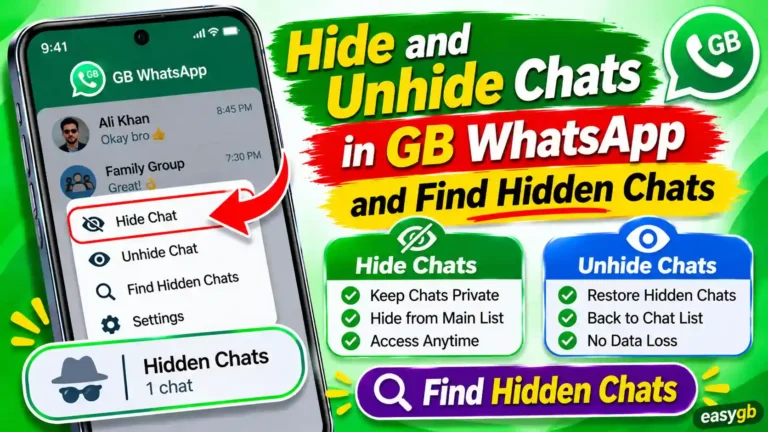
How to Hide the Locked Chats Folder in GB WhatsApp
The Locked Chats folder appears at the top of your chat list by default. This is fine for most situations, but sometimes even the existence of a locked folder raises questions you do not want to answer. GB WhatsApp lets you make the folder completely invisible using a secret code.
Steps to Hide the Locked Chats Folder
- Go to GB Settings > Privacy > Chat Lock (or Chat Lock settings).
- Find the toggle labeled Hide Locked Chats and enable it.
- You will be prompted to create a secret code. This can be any word, phrase, or number you choose. It does not need to match your PIN or pattern.
- Enter your chosen code and confirm it. The Locked Chats folder disappears from your chat list immediately.
How to Reveal Your Hidden Locked Chats
- Open GB WhatsApp and tap the search bar at the top of the chat list.
- Type your exact secret code into the search bar.
- The Locked Chats folder reappears in the results. Tap it and authenticate as usual.
- When you close the folder, it disappears again automatically until the next time you search for it.
If you forget your secret code, you cannot directly reveal the hidden folder through the app. You will need to go to GB Settings > Privacy > Chat Lock settings and disable the Hide Locked Chats toggle, which requires authenticating with your main App Lock PIN or fingerprint first.
Controlling Notifications for Locked Chats
Locking a chat is only half the battle. If your notification shade shows the sender name and a preview of their message, the lock is visually bypassed without anyone touching your phone. GB WhatsApp handles this automatically for locked chats, but you should understand exactly what happens and how to tweak it.
What Happens to Notifications by Default
When a contact sends you a message from a locked chat, you receive a notification that shows only a generic label such as “New message” or “GB WhatsApp.” The sender name and message content are hidden from the notification shade and from the lock screen. This behavior is on by default as soon as you lock a chat.
Additional Notification Privacy Options
Inside GB Settings > Privacy, look for these extra controls that work alongside the lock features:
- Hide notification content: Forces all notifications to show no preview, even for unlocked chats. Pairs well with App Lock for a fully private notification shade.
- Hide message preview: Specific to locked chats in some GB WhatsApp builds. Removes even the “New message” label and shows only the app icon in the notification.
- Disable notifications for locked chats: Some users prefer to get zero notifications from locked conversations. This option (where available) silences the locked folder entirely until you open it manually.
Having trouble with GB WhatsApp notifications in general? Our complete guide to GB WhatsApp notification issues covers all the common fixes.
Forgot Your GB WhatsApp Lock PIN or Pattern? Here Is How to Get Back In
Getting locked out of GB WhatsApp is stressful, but it is always fixable. The specific recovery path depends on whether you set up a recovery email when you first enabled the lock. Work through these methods in order from easiest to most involved.
Method 1: Reset Using a Recovery Email (Recommended)
This method works only if you registered a recovery email inside GB WhatsApp before you forgot your PIN. It is the safest path because your chats are completely untouched.
- Try to open GB WhatsApp. The app lock screen appears.
- Look for and tap the Forgot PIN link on the lock screen.
- Enter the email address you registered as your recovery email.
- Check your inbox for a reset link from GB WhatsApp. Check your spam folder if you do not see it within two minutes.
- Tap the link in the email. It opens GB WhatsApp and prompts you to set a new PIN or pattern.
- Create and confirm your new credentials. The lock now uses the new PIN going forward.
Method 2: Use Security Questions (If You Set Them Up)
Some versions of GB WhatsApp include security questions as an alternative recovery method. If you configured this during setup, the recovery screen will show a “Security Question” option alongside the email reset.
- On the lock screen, tap Forgot PIN.
- Select Security Question if the option appears.
- Answer the question you chose during setup exactly as you typed it originally.
- Set a new PIN or pattern when the app prompts you.
Method 3: Use Fingerprint to Bypass and Then Change PIN
If you forgot your PIN but your fingerprint still works, you have a simple path forward.
- On the App Lock screen, use your registered fingerprint to unlock GB WhatsApp.
- Once inside, go to GB Settings > Privacy > App Lock.
- Toggle App Lock off (your fingerprint authenticates this action).
- Immediately toggle App Lock back on.
- Set your new PIN, pattern, or choose fingerprint-only again.
Method 4: Clear App Data (Last Resort, No Recovery Email)
If you have no recovery email, no security question set up, and fingerprint is not working, this is your only remaining option. Read the whole method before you start.
Clearing app data removes all lock credentials and GB WhatsApp settings. Your actual chat messages stored in your phone storage remain safe as long as a backup file exists. Before clearing data, verify that a backup file exists. Open your phone’s file manager and check: Internal Storage > WhatsApp > Databases or Internal Storage > GBWhatsApp > Databases. If you see files there, your chats are backed up.
- Open your Android Settings app.
- Go to Apps (or Application Manager, depending on your Android version).
- Find and tap GB WhatsApp in the app list.
- Tap Storage.
- Tap Clear Data. Confirm when prompted. This removes the lock PIN and all app settings. Your chat backup files are not deleted.
- Open GB WhatsApp. It opens without any lock because all credentials were cleared.
- Verify your phone number and restore your backup when the app asks. All your chats come back.
- Go to GB Settings > Privacy > App Lock and set up a new lock immediately. This time, add a recovery email too.
Your messages live in backup files in your phone storage, not inside the app data. Clearing app data only removes the lock configuration and cached settings. As long as you restore the backup during the initial setup, every message comes back. If you are also struggling with restoring backups, our GB WhatsApp restore guide covers the full backup and recovery process.
Forgot Your Chat Lock PIN Specifically
If only the Chat Lock PIN is forgotten (separate from App Lock in some builds), the process mirrors Method 4 above but is targeted at the specific chat lock settings. Tap Forgot PIN on the Chat Lock screen, enter your recovery email, and follow the reset link. Without a recovery email, go to Android Settings > Apps > GB WhatsApp > Storage > Clear Data, then restore your backup.
Troubleshooting GB WhatsApp Lock Issues
Sometimes the lock features do not behave exactly as expected. These are the most common problems users run into, along with their real fixes.
App Lock Option Not Showing in GB Settings
This almost always means your GB WhatsApp version is outdated. Older builds did not have App Lock under GB Settings. Update to the latest version first. If updating does not add it, check under GB Settings > Security or GB Settings > Privacy and Security as the label varies between builds. You can get the most current version from EasyGB.com.
Fingerprint Not Working on App Lock
Try these fixes in order:
- Clean your fingerprint sensor and the tip of the finger you registered.
- Go to Android Settings > Security > Fingerprint and re-register your fingerprint.
- Restart your phone, then try the GB WhatsApp fingerprint lock again.
- If the sensor continues to fail, use your backup PIN to authenticate and switch your App Lock method to PIN only.
App Lock Not Triggering After You Close the App
Check your auto-lock timer setting. If it is set to “After 30 minutes” or “After 1 hour,” the app stays open for a long time after you close it. Go to GB Settings > Privacy > App Lock and change the timer to “After 1 minute” or “Immediately” to fix this.
Also check that GB WhatsApp has permission to run in the background. If your Android battery optimization kills GB WhatsApp as a background process, the lock may not trigger correctly. Go to Android Settings > Battery > Battery Optimization and set GB WhatsApp to “Not optimized.”
Locked Chat Disappeared Completely
Your chat is not gone. It is in the Locked Chats folder. If you cannot see the folder at the top of the chat list, slowly pull down from the top of the chat list to reveal it. If the folder is hidden with a secret code, type your secret code into the GB WhatsApp search bar to make it appear.
App Crashes When Opening a Locked Chat
Open Android Settings > Apps > GB WhatsApp > Storage > Clear Cache (do not tap Clear Data, only Clear Cache). Cache clearing removes temporary files causing the crash without removing your settings or chat data. Restart the app after clearing the cache.
Receiving No Notifications from Locked Chats
This is expected behavior in many GB WhatsApp versions. When a chat is locked, notifications are silenced or hidden to protect your privacy. If you want to receive alerts, you have two options. You can unlock the chat and rely on App Lock to protect the whole app instead, or you can check your Locked Chats folder manually at regular intervals.
If GB WhatsApp is not delivering notifications at all (beyond locked chats), read our detailed GB WhatsApp notification fix guide for a complete diagnosis.
Best Practices for Maximum GB WhatsApp Privacy and Security
Getting the lock features set up is a great first step. Using them well over time is what actually keeps your conversations private. These habits make a real difference.
- Always set a recovery email. This one habit prevents the most painful lockout scenario. Add it the moment you enable App Lock and never change the email without updating it inside GB WhatsApp first.
- Use both App Lock and Chat Lock together. App Lock prevents anyone from opening the app. Chat Lock adds a second barrier to your most sensitive conversations. Using both together means two independent security failures would have to happen for someone to read your private chats.
- Set the auto-lock timer to 1 minute or less. A 30-minute or 1-hour timer creates a wide window where someone could pick up your phone and have full access to GB WhatsApp. One minute is the practical sweet spot.
- Hide the Locked Chats folder with a secret code. Making the folder invisible removes the visual signal that locked conversations even exist. This is especially useful if you share your screen frequently.
- Store your PIN or pattern in a password manager. Apps like Google Password Manager, Bitwarden, or 1Password let you store your GB WhatsApp lock credentials securely and retrieve them if your memory fails. This is far safer than writing them on paper.
- Keep GB WhatsApp updated. Security and privacy features improve with every update. An outdated version may have lock vulnerabilities or missing recovery options. Keeping the app current is the easiest security step of all.
- Back up your chats regularly. A backup is your safety net. If you ever need to clear app data to reset a forgotten PIN, a backup means you lose nothing. Set up automatic backups under Settings > Chats > Chat Backup in GB WhatsApp.
- Avoid biometrics on shared or family devices. If multiple people’s fingerprints are registered on your Android device, any of them can bypass your GB WhatsApp fingerprint lock. Use PIN or pattern on shared devices instead.
GB WhatsApp is a third-party modified application. While the privacy features described in this guide work as intended within the app itself, it is worth understanding the broader security picture. Read our full analysis of whether GB WhatsApp is safe to make an informed decision about how you use it alongside these lock features.
Frequently Asked Questions
How do I set up App Lock in GB WhatsApp?
Open GB WhatsApp and tap the three-dot menu at the top right. Go to GB Settings, then tap Privacy. Find the App Lock option and toggle it on. Choose your preferred lock method (PIN, pattern, or fingerprint), enter and confirm your credentials, and the lock is active immediately.
What is the difference between App Lock and Chat Lock in GB WhatsApp?
App Lock secures the entire GB WhatsApp application. No one can open the app without your PIN, pattern, or fingerprint. Chat Lock works at a conversation level and protects only the specific chats you select. Both locks can be active at the same time for a layered security setup.
How do I lock an individual chat in GB WhatsApp?
Open GB WhatsApp and go to your chat list. Long-press the conversation you want to lock. Tap the three-dot menu that appears and select Lock Chat (also labeled Lock Conversation in some versions). Confirm with your fingerprint or PIN. The chat moves to the Locked Chats folder automatically.
How do I change my GB WhatsApp App Lock PIN or pattern?
Go to GB Settings, then Privacy, then App Lock. Authenticate with your current PIN or fingerprint to enter the settings. Toggle the App Lock off, then toggle it back on immediately. When you turn it back on, GB WhatsApp asks you to set a new PIN or pattern. This is the standard way to change lock credentials in the current version.
I forgot my GB WhatsApp App Lock PIN. How do I reset it?
If you have a recovery email set up in GB WhatsApp, tap Forgot PIN on the lock screen, enter your registered email, and follow the reset link sent to your inbox. If no recovery email was set, you need to clear the GB WhatsApp app data from Android Settings > Apps > GB WhatsApp > Storage > Clear Data. This removes the lock but also wipes local settings. Your chat messages stay safe if you have a recent backup.
I forgot my GB WhatsApp Chat Lock PIN. What can I do?
Tap Forgot PIN on the chat lock screen and enter the recovery email you registered during setup. GB WhatsApp will send a reset link. If no recovery email was saved, the only option is to clear app data from Android Settings > Apps > GB WhatsApp > Storage > Clear Data. After clearing data, install GB WhatsApp fresh and restore your backup to recover your messages.
Does clearing GB WhatsApp app data delete my chats?
Clearing app data removes the lock credentials and all app settings, but your chat files stored in your phone’s internal storage remain intact. When you reinstall or reopen GB WhatsApp and verify your number, the app detects the existing backup and offers to restore it. Always back up your chats before clearing app data to be completely safe.
Can I use fingerprint for GB WhatsApp App Lock?
Yes. When you enable App Lock in GB Settings > Privacy, one of the available authentication methods is fingerprint lock. Your device must have a working fingerprint sensor registered in Android settings. If the fingerprint sensor fails to read, GB WhatsApp automatically falls back to your backup PIN.
How do I hide the Locked Chats folder in GB WhatsApp?
Go to GB Settings, then Privacy, then Chat Lock settings. Enable the Hide Locked Chats toggle. Once enabled, the Locked Chats folder disappears from your main chat list. To access it again, type your secret code directly into the GB WhatsApp search bar and the folder reappears.
Will someone be notified if I lock their chat in GB WhatsApp?
No. Locking a chat in GB WhatsApp is a local action on your device only. The other person receives no notification, alert, or message of any kind when you lock or unlock your side of the conversation.
Can I lock group chats in GB WhatsApp?
Yes. The Chat Lock feature works for both individual contacts and group conversations. Long-press the group chat in your list, tap the three-dot menu, and select Lock Chat. The group moves to your Locked Chats folder and requires your authentication to open.
How do I set the auto-lock timer in GB WhatsApp?
After enabling App Lock under GB Settings > Privacy, look for the auto-lock timer or lock delay option. Available options typically include Immediately, After 1 minute, After 5 minutes, After 15 minutes, After 30 minutes, and After 1 hour. Setting it to Immediately gives maximum security. Setting it to 1 or 5 minutes gives a balance between convenience and protection.
Ready to Lock Down Your GB WhatsApp?
App Lock and Chat Lock together give you one of the most complete privacy setups available in any messaging app. Set up your recovery email the moment you enable the lock, choose a smart auto-lock timer, and hide your Locked Chats folder for complete peace of mind.
Start with the latest GB WhatsApp version to make sure all these features are available. Download the latest GB WhatsApp APK safely from EasyGB and follow this guide from the top to have everything configured correctly in under ten minutes.