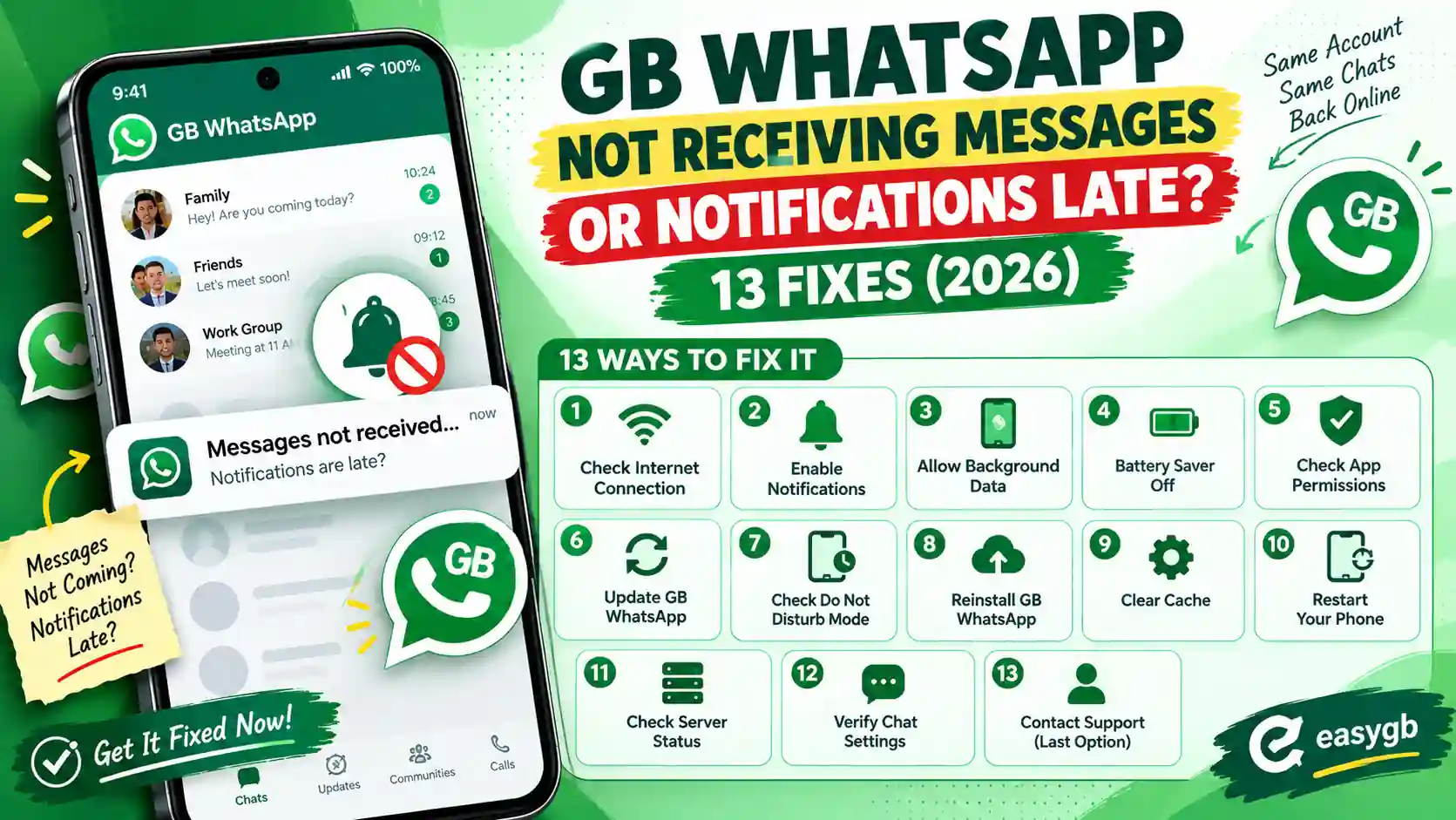
GB WhatsApp Not Receiving Messages or Notifications Late? 13 Fixes (2026)
Messages only show up when you open GB WhatsApp? Notifications arrive an hour late, or not at all? Here is exactly where your messages get stuck, a quick test to find the cause, and 13 fixes, including the exact settings for Samsung, Xiaomi, Oppo, Vivo, Infinix, and Tecno.
Ali: Are you coming or not?
3 new messages from Family
Why GB WhatsApp Messages Arrive Late
Your friend sent that message 52 minutes ago. However, your phone only showed it when you picked it up. That gap almost never means a problem with your account.
Instead, Android usually put GB WhatsApp to sleep to save battery. While it sleeps, the app cannot collect new messages, so they wait on WhatsApp’s servers until something wakes the app up.
Here is why this hits GB WhatsApp harder than the official app. Phone makers tune their battery savers for apps from the Play Store. A sideloaded app like GB WhatsApp gets no special treatment, so aggressive battery managers on Xiaomi, Samsung, Oppo, Vivo, Infinix, and Tecno phones close it far more often.
The good news? Once you exempt GB WhatsApp from those savers, delivery usually becomes instant again. The trick is knowing which of the many switches on your phone is the guilty one.
Late messages almost always come from a battery saver, not a broken app. Do these four things first:
- Turn off GB WhatsApp’s own DND mode or airplane icon if you see one in the top bar.
- Open App info for GB WhatsApp and set Battery to Unrestricted.
- Allow Notifications and Background data for the app.
- On Xiaomi, Oppo, Vivo, Infinix, or Tecno, turn on Autostart and lock the app in your recent apps.
On this page Tap to open
Where Your Message Gets Stuck
Every message travels through five stops before your phone buzzes. A break at any stop causes the same symptom, so it helps to picture the whole route.
- SenderYour friend sends the message from their phone.
- WhatsApp serverThe server holds it until your app checks in.
- Your connectionWiFi or mobile data must reach the server in the background.
- Android battery managerThe most common break: it freezes the app to save power.
- GB WhatsApp and alertsThe app receives the message and shows a notification.
Notice that only one stop sits inside WhatsApp itself. The other four live on your phone, which is why phone settings fix the vast majority of cases.
The 10 Minute Screen Off Test
Before changing anything, find out what kind of delay you have. This simple test tells you.
Step 1. Close GB WhatsApp normally with the back button, not by swiping it away. Then lock your screen and leave the phone alone for 10 minutes.
Step 2. Ask a friend to send you a message during that time.
Step 3. Watch what happens. If the notification arrives on time, your setup works, and the delay only happens after longer idle periods, so focus on Fixes 4 to 8. If nothing arrives until you unlock and open the app, Android is freezing GB WhatsApp, so start with Fix 4. If messages never arrive, even with the app open, jump to Fix 9 and Fix 11.
Bonus check: many phones keep a Notification history under Settings, then Notifications. If late messages appear there with the right time, the app received them but the alert was silenced, which points to Fix 1 to Fix 3.
Match Your Symptom to the Right Fix
Different screens point to different causes. Find the line that sounds like yours.
| What you notice | Likely cause | Go to |
|---|---|---|
| Messages appear only when you open the app | Android froze the app in the background | Fix 4 and Fix 5 |
| Notifications come in bursts, often late | Battery saver or Doze batching updates | Fix 7 |
| No sound or banner, but messages are there | Notification permission, DND, or chat muted | Fix 1 and Fix 3 |
| Nothing arrives at all, even with the app open | GB DND mode, no internet, or logged out | Fix 2 and Fix 11 |
| Works on WiFi, fails on mobile data | Background data blocked or Data Saver on | Fix 6 |
| One contact’s messages never show | That chat is muted, archived, or hidden | Fix 10 |
| Problem started after a phone update | Settings reset or new battery rules | Fix 4 to Fix 7 |
Part 1: Alerts Are BlockedFixes 1 to 3 cover silenced notifications.
Fix 1: Allow Notifications for GB WhatsApp
Since Android 13, every app needs your permission before it can show notifications. If you tapped Don’t allow during setup, or a cleanup tool revoked it, GB WhatsApp receives messages silently.
- Long press the GB WhatsApp icon and tap App info.
- Open Notifications and switch on Allow notifications.
- Check each category inside, such as message, group, and call notifications, and make sure none is turned off.
- In GB WhatsApp, open Settings, then Notifications, tap the three dot menu, and choose Reset notification settings.
Resetting clears any odd tone, vibration, or popup choice that might hide alerts, and it never deletes chats.
Fix 2: Turn Off GB WhatsApp’s DND or Airplane Mode
This one catches a lot of users. GB WhatsApp includes its own DND mode, sometimes shown as an airplane icon in the top bar. It cuts the app’s internet connection while your phone stays online, so nobody’s messages reach you.
- Open GB WhatsApp and look at the icons next to the search button at the top.
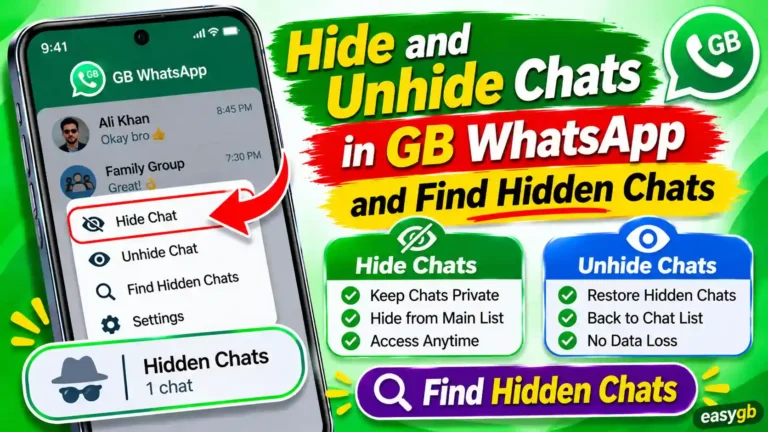
- If you see an airplane or DND icon, tap it and turn the mode off.
- If you do not see it, check the GB settings menu for a DND or internet toggle.
- Wait a few seconds; held messages should flood in at once.
Signs DND is on: your contacts see one grey tick on everything they send you, and nothing arrives even while the app sits open in front of you.
Fix 3: Check Do Not Disturb, Bedtime, and Focus Modes
Android’s own Do Not Disturb silences alerts system wide. Worse, many people set a schedule once and forget it exists.
- Swipe down from the top and make sure the Do Not Disturb tile is off.
- Open Settings, then Notifications, then Do Not Disturb and review every schedule.
- Check Bedtime mode or Digital Wellbeing, which can switch DND on automatically at night.
- If you want DND on but still need GB WhatsApp alerts, add GB WhatsApp under Apps that can interrupt.
Part 2: Android Is Freezing the AppFixes 4 to 8 cover the most common cause of late messages.
Fix 4: Set Battery Usage to Unrestricted
This single setting fixes more late notifications than any other. By default, Android optimizes every app’s battery use, which allows it to pause GB WhatsApp whenever the screen goes off.
- Long press the GB WhatsApp icon and tap App info.
- Tap Battery or App battery usage.
- Choose Unrestricted. On older phones, open the battery optimization list instead, show all apps, and set GB WhatsApp to Don’t optimize.
- Restart your phone and run the 10 minute test again.
Will this drain your battery? Barely. A messaging app that waits for messages uses very little power, so most people notice no real difference.
Fix 5: Beat Your Phone Brand’s App Killer
Some brands add a second, stricter battery manager on top of Android. The independent project Don’t Kill My App ranks Xiaomi, OnePlus, Samsung, Oppo, Vivo, realme, and Tecno among the phone makers that close background apps most aggressively. So on these phones, Fix 4 alone is often not enough.
SamsungOne UI
- Settings, then Battery, then Background usage limits: remove GB WhatsApp from Sleeping and Deep sleeping apps
- Turn off Put unused apps to sleep on the same screen
- Add GB WhatsApp to Never sleeping apps
XiaomiHyperOS and MIUI, Redmi, POCO
- App info, then turn on Autostart
- App info, then Battery saver: choose No restrictions
- Open recent apps, long press GB WhatsApp, and tap the lock icon
Oppo and realmeColorOS and realme UI
- App info, then Battery usage: allow background activity
- On the same screen, allow auto launch
- Lock the app in recent apps
VivoFuntouch OS and OriginOS
- Settings, then Battery, then Background power consumption: allow GB WhatsApp high background use
- Turn on Autostart in the app permissions menu
- Lock the app in recent apps
Infinix and TecnoXOS and HiOS
- Open Phone Master or the app launch settings and allow auto start and background running
- Exclude GB WhatsApp from any one tap cleaner or power boost
- Lock the app in recent apps
Pixel and othersStock Android
- App info, then App battery usage: choose Unrestricted
- Turn off Pause app activity if unused on the App info page
- Consider turning off Adaptive Battery if delays continue
Menu names shift between software versions, so use your phone’s settings search if a label looks different. Search for autostart, background, or battery, and the right screen usually appears first.
Fix 6: Allow Background Data and Bypass Data Saver
If messages flow on WiFi but stall on mobile data, a data restriction is blocking the app in the background.
- Open App info for GB WhatsApp, then Mobile data or Data usage.
- Turn on Background data.
- Turn on Unrestricted data usage so the app keeps working while Data Saver is on.
- On dual SIM phones, confirm mobile data is set to the SIM that has a data package.
Fix 7: Stop Android From Putting the App to Sleep
Modern Android adds automatic rules on top of battery optimization. They learn which apps you use rarely and restrict them, and a messaging app you check in bursts can end up on that list.
| Feature | What it does | What to change |
|---|---|---|
| Adaptive Battery | Limits apps it predicts you will not use soon | Turn it off if delays continue after Fix 4 |
| Pause app activity if unused | Hibernates apps you have not opened for a while | Switch it off on the App info page |
| Sleeping apps (Samsung) | Stops background activity for apps it labels unused | Remove GB WhatsApp from the list |
| Power saving mode | Restricts every background app at once | Turn it off, or exempt GB WhatsApp where allowed |
| Adaptive Connectivity | Switches networks to save power, which can delay syncs | Turn it off if delays appear on mobile data |
Fix 8: Stop Killing the App Yourself
Many people delay their own messages without realizing it. A force stop, a swipe away habit, or a cleaner app all shut GB WhatsApp down completely, and it cannot receive anything until you reopen it.
- Never tap Force stop unless you are fixing a crash.
- Avoid swiping GB WhatsApp away in recent apps on Xiaomi, Oppo, Vivo, Infinix, and Tecno phones, where that often counts as a full stop.
- Uninstall cleaner, booster, and battery saver apps, or exclude GB WhatsApp from them.
- Open GB WhatsApp once after every phone restart, so it registers for messages again.
Part 3: Messages Never ArriveFixes 9 to 13 cover connection, chat, and account problems.
Fix 9: Fix WiFi, VPN, and Network Problems
When no messages arrive even with the app open, check the connection first.
- Open a website in your browser to confirm the internet actually works.
- Turn airplane mode on for 10 seconds, then off, to reset the network.
- Turn off WiFi power saving or similar options in your WiFi settings, which can slow background checks.
- Disconnect any VPN or ad blocker and test again, since some block WhatsApp’s servers.
- Switch between WiFi and mobile data to see whether one network is the problem.
Fix 10: Check Muted, Archived, and Hidden Chats
When only certain people seem to go quiet, the cause usually sits inside GB WhatsApp, not your phone.
| Setting | What happens | How to undo it |
|---|---|---|
| Muted chat | Messages arrive, but with no sound or banner | Open the chat, tap the name, and choose Unmute |
| Archived chat | The chat moves out of your main list | Open Archived at the top of the chat list and unarchive it |
| Hidden or locked chat | GB WhatsApp hides the chat and its alerts behind a lock | Unlock it from the GB privacy or hidden chats screen |
| Custom notifications | One contact has a silent tone or no popup | Tap the contact name, then Custom notifications, and reset them |
| Blocked contact | You receive nothing from that person | Settings, then Privacy, then Blocked contacts |
Also check whether the problem is on their side. If their messages show one tick on their phone, they may have no internet, or your account may not be receiving at all, which leads to Fix 11.
Fix 11: You Are Logged Out or Active Somewhere Else
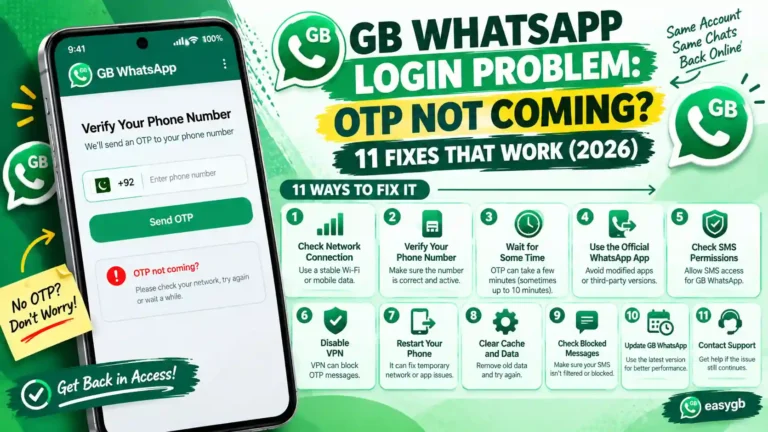
WhatsApp allows one main phone per number. So if your number gets verified on another phone or app, your GB WhatsApp quietly stops receiving messages.
- Verified on another app: if you registered the same number on official WhatsApp or another mod, that app now owns the account. Verify again in GB WhatsApp, or use companion linking instead.
- Companion device logged out: if GB WhatsApp runs as a linked device, it logs out after the main phone stays offline for about 14 days.
- Ban or review: a ban or account review stops delivery completely, and the app shows a message explaining it.
- Number screen again: if the app asks for your number again, your session ended, so verify and restore your backup.
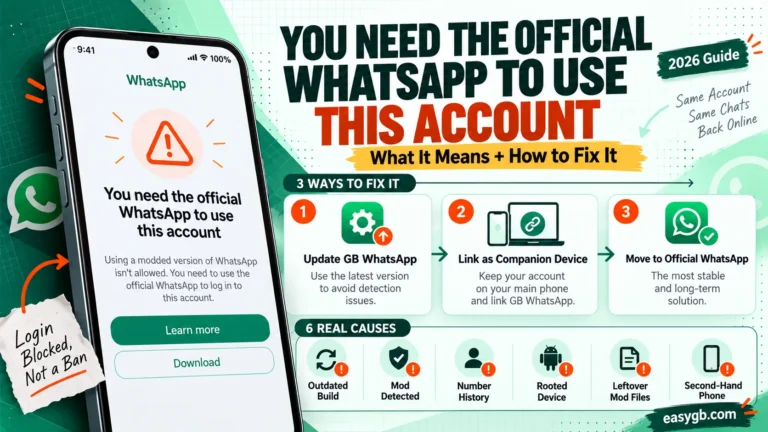
Seeing a ban screen instead? Our guide on what to do after a GB WhatsApp ban walks through your options.
Fix 12: Update GB WhatsApp and Clear the Cache
Outdated builds sometimes lose their connection to WhatsApp’s servers, and the app then fails to collect messages in the background. The current release, v26.97, fixed connection and linking problems from v26.90.
- Back up your chats and copy the GBWhatsApp folder somewhere safe.
- Install the newest GB WhatsApp build directly over your current version. The file is about 133 MB.
- Open App info, then Storage, and tap Clear cache. Never tap Clear data without a backup.
- Restart your phone and open GB WhatsApp once.
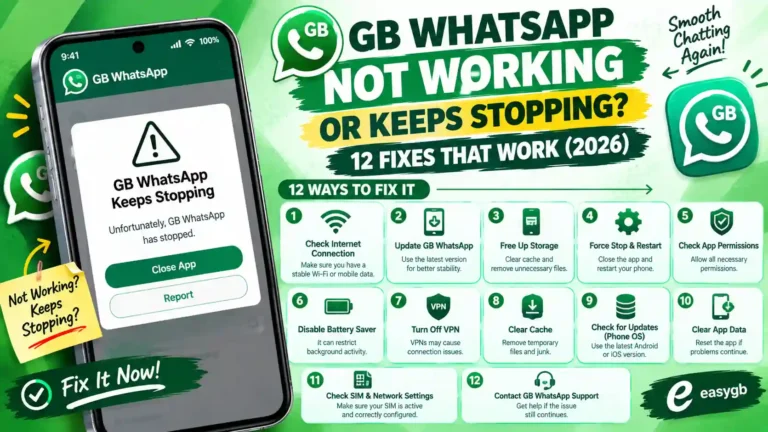
If the app starts crashing instead of just delaying messages, switch to our guide for when GB WhatsApp keeps stopping.
Fix 13: When the Problem Is Not Your Phone
Sometimes nobody receives messages on time. WhatsApp outages happen a few times a year, and they hit official and modded apps alike.
- Check a status site such as Downdetector for a spike in WhatsApp reports.
- Ask a friend on official WhatsApp whether their messages are delayed too.
- If it is an outage, wait. Changing settings during an outage only creates new problems.
Notification Tricks to Avoid
The internet is full of quick fixes for late notifications. Most of them waste time, and some make the problem worse.
- “Notification booster” apps: they cannot override Android’s battery rules and often show ads or collect data.
- Keeping the screen on all day: it drains the battery and still fails once the phone locks.
- Reinstalling every time: a reinstall resets your settings without touching the battery rules that caused the delay.
- Turning off Play Protect: it has nothing to do with message delivery.
- Rooting the phone: it adds risk and can trigger WhatsApp’s security checks.
How to Keep Messages Arriving on Time
- Recheck battery and autostart settings after every major phone update, since updates often reset them.
- Keep GB WhatsApp on the latest build.
- Stop using cleaner and booster apps.
- Keep at least 1 GB of free storage, because a full phone can block incoming media.
- Run the 10 minute test once a month to catch problems early.
Frequently Asked Questions
Why is GB WhatsApp not receiving messages until I open it?
Android is freezing the app in the background to save battery. Set its battery usage to Unrestricted, turn on Autostart, and lock it in your recent apps.
Why are GB WhatsApp notifications late?
A battery saver, sleeping apps list, or Doze mode delays the app until you wake the phone. Exempt GB WhatsApp from every battery restriction on your phone.
What is DND mode in GB WhatsApp?
It is a built in switch that cuts the app’s internet while your phone stays online. When it is on, you receive nothing, so turn it off from the top bar or GB settings.
How do I stop my phone from killing GB WhatsApp?
Set battery to Unrestricted, allow autostart and background activity, remove it from sleeping apps, and lock it in recent apps. Avoid cleaner apps.
Why does GB WhatsApp work on WiFi but not on mobile data?
Background data is blocked or Data Saver is on. Allow background data and unrestricted data usage in the app’s data settings.
Does setting battery to Unrestricted drain my phone?
Only slightly. A messaging app uses very little power while it waits for messages, so most people notice no real difference.
Why do I get messages from everyone except one contact?
That chat is probably muted, archived, hidden, or blocked. Check each setting, or ask whether the contact has internet.
Why did GB WhatsApp stop receiving messages suddenly?
Your number may be active on another app, your companion session may have expired, or DND mode got switched on. Check Fix 2 and Fix 11.
Do I need to keep GB WhatsApp open to get messages?
No. Once you remove battery restrictions, the app receives messages with the screen off and the app closed.
Why are notifications late after a phone update?
Updates often reset battery and autostart permissions. Go through the battery, autostart, and sleeping apps settings again.
Does swiping GB WhatsApp away stop messages?
On many Xiaomi, Oppo, Vivo, Infinix, and Tecno phones, yes. Lock the app in recent apps or stop swiping it away.
Why do my messages arrive in bursts?
Android batches background updates to save power. Remove battery restrictions and turn off Adaptive Battery if bursts continue.
Can a VPN stop GB WhatsApp messages?
Yes, some VPNs and ad blockers block WhatsApp’s servers. Disconnect the VPN and test again.
Is late delivery a sign of a GB WhatsApp ban?
No. A ban shows a clear message on screen. Late messages point to battery, network, or notification settings instead.
Sources and Further Reading
- Don’t Kill My App: which phone brands close background apps, with fixes per brand
- Android Authority: why Android notifications get delayed (November 2025)
- Android Developers: the notification permission added in Android 13
- Guiding Tech: delayed WhatsApp notifications on Android
- WhatsApp Help Center: notifications, linked devices, and account status
3 Comments